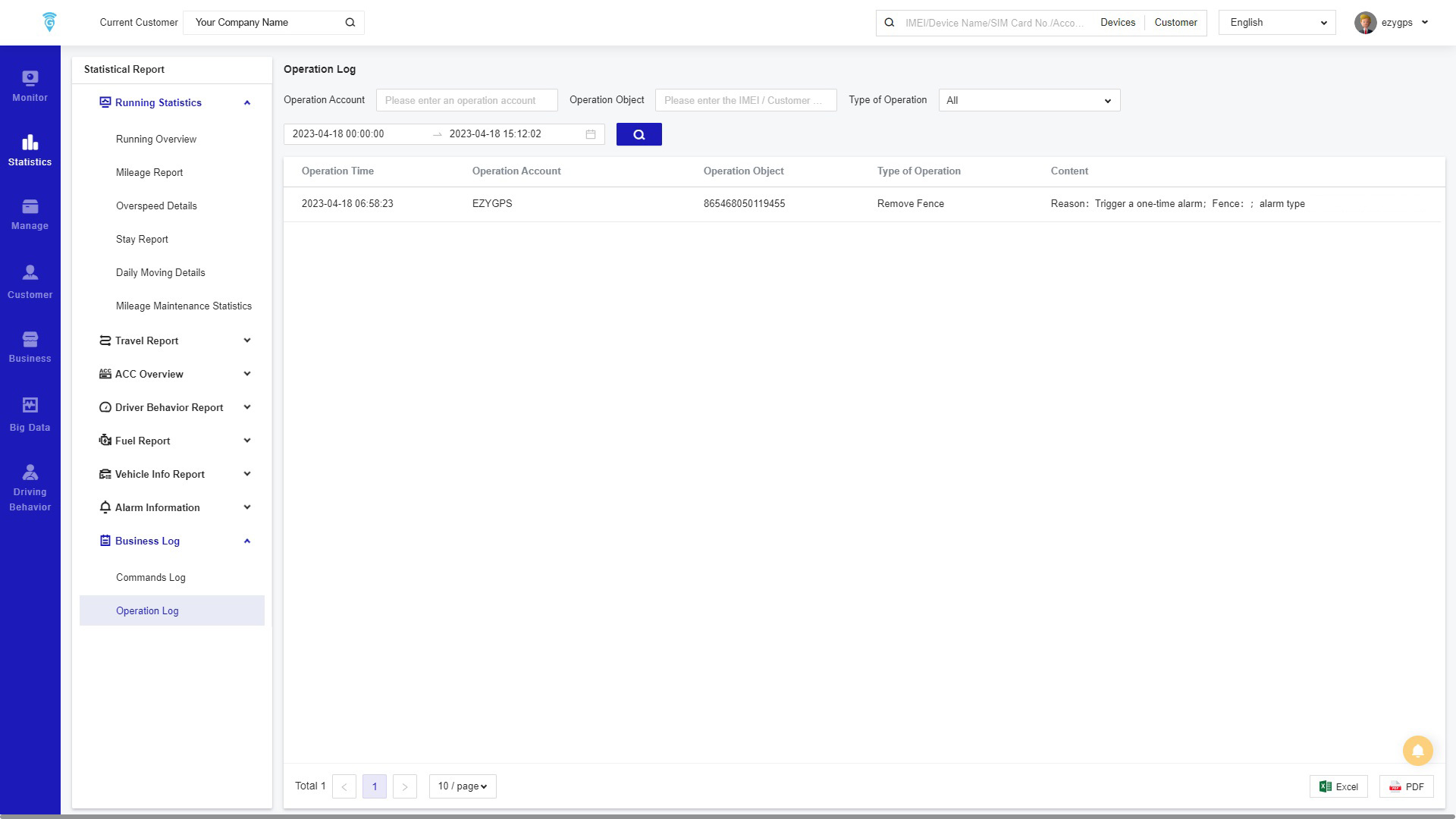
Running Information
Click Statistics in the main menu bar on the left to enter this page. On this page, view the Running Information, Mileage Report, Overspeed Report, Stay Report, Daily Moving Details, and Mileage Maintenance Statistics.
Steps:
- Click on one of these topics, and the corresponding page will appear.
- A list of all devices will be displayed. If wanting to select only one device, search in “Device Name” for the device you want to collect information about. The search list can be searched by single-selection or all-selection.
- Time periods can be selected to a specific time period, and click search, or you can select the time field below to view it quickly. Click the export button on the far right to export related reports (in Excel or PDF form).

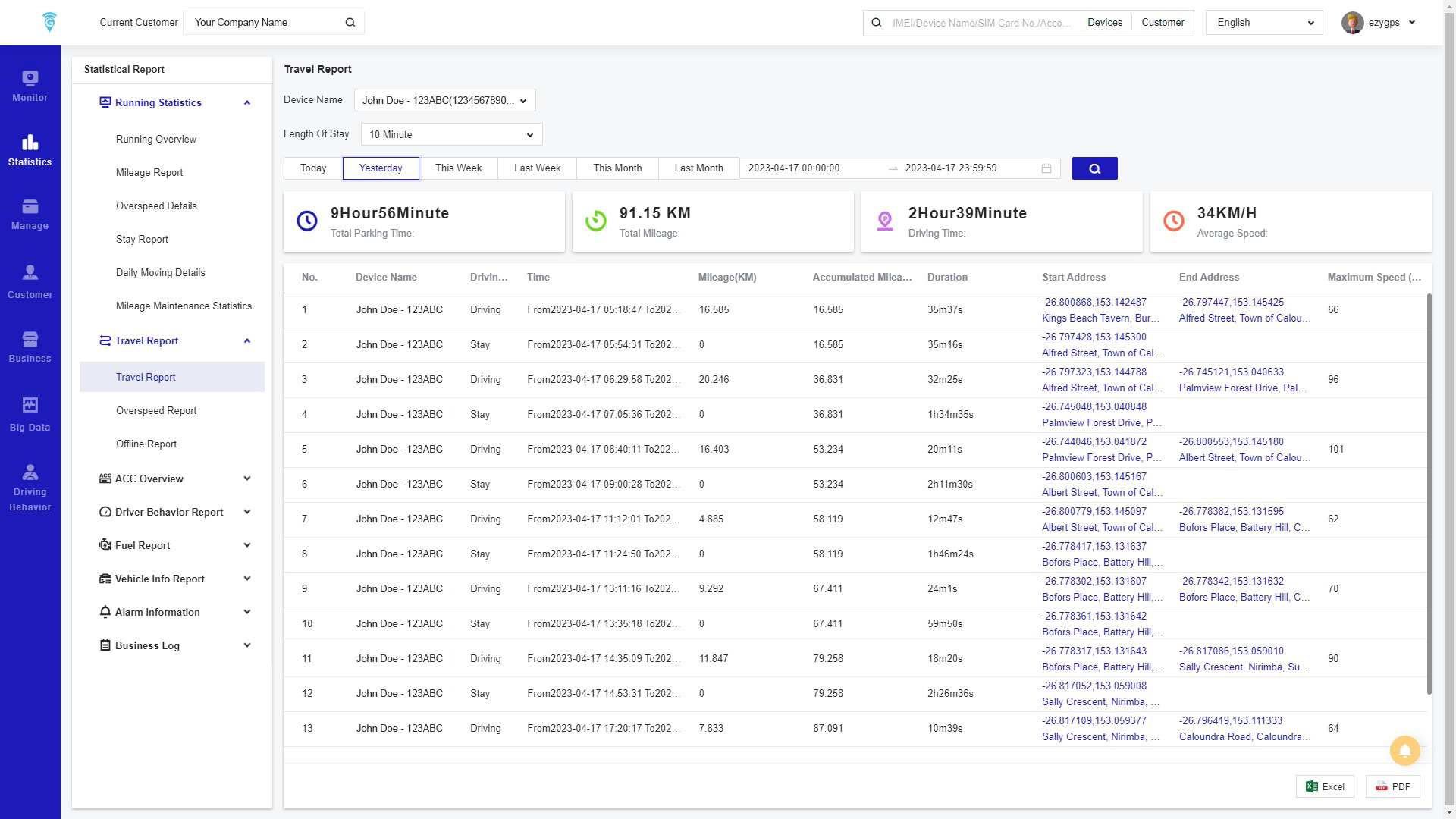
Travel Report
Click on Travel Report for an overview of Travel details, as shown in the image below; you can view the details of Travel Report, Speeding Time Period Statistics and Offline Report.
Steps:
- Click on one of these topics, and the corresponding page will appear.
- A list of all devices will be displayed. If wanting to select only one device, search in “Device Name” for the device you want to collect information about. The search list can be searched by single-selection or all-selection.
- Time periods can be selected to a specific time period, and click search, or you can select the time field below to view it quickly. Click the export button on the far right to export related reports (in Excel or PDF form).
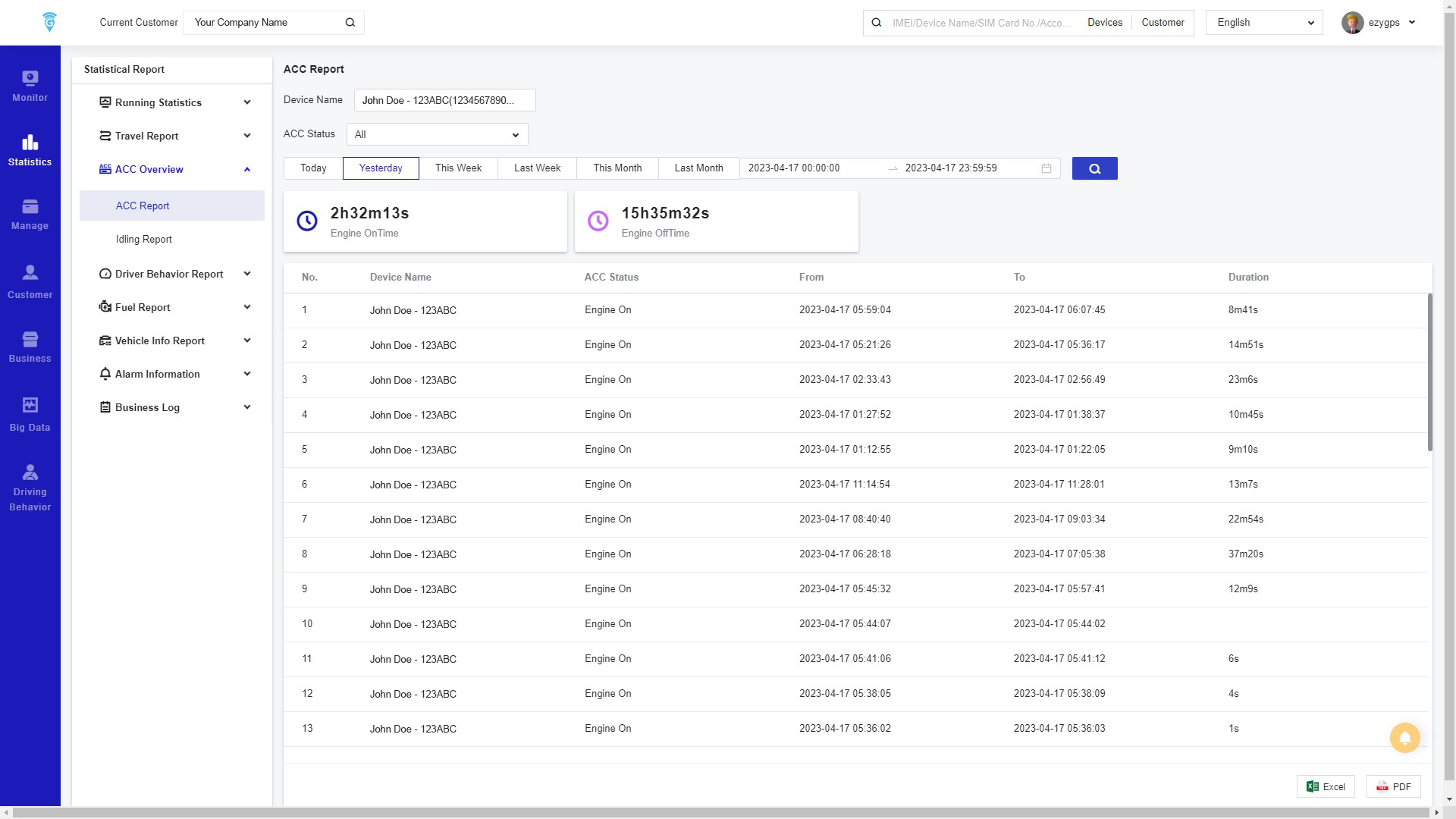
ACC Report
Click on ACC Report for an overview of the ACC report, which is when the vehicle’s ignition has been turned on and off. The Stay Unextinguished Report shows when the vehicle stays still, but the ignition is still on.
Steps:
- Click on one of these topics, and the corresponding page will appear.
- Enter the device you want information on, in the “Device Name” search bar, then select the ACC Status you would like. There are three options, ALL, ON, or OFF.
- Time periods can be selected to a specific time period, and click search, or you can select the time field below to view it quickly. Click the export button on the far right to export related reports (in Excel or PDF form).
- Make sure to click the search button or otherwise the results will not appear.
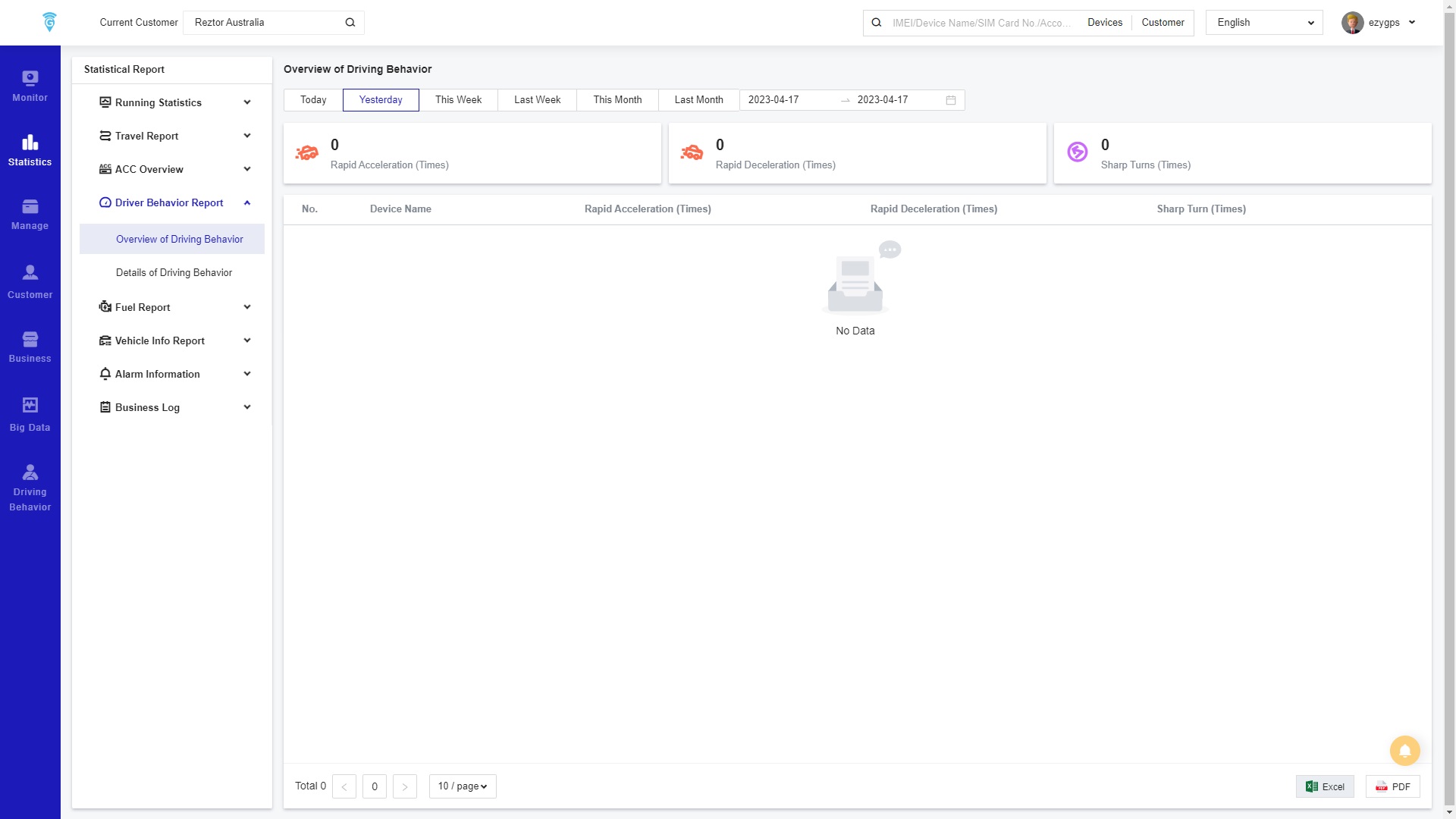
Driver Behaviour Report
Click on Driving Behaviour Report for an overview of Driving Behaviours, as shown in the figure below; you can view the Overview of Driving Behaviour and Details of Driving Behaviour.
Steps:
- Click on one of these topics, and the corresponding page will appear.
- For the Overview of Driving Behaviour report, simply select a time period and your results will appear.
- For the details of Driving Behaviour, enter the device you want information on, in the “Device Name” search bar, then select the Driving Behaviour you would like. There are four options, All, Rapid Acceleration, Rapid Deceleration and Sharp Turn.
- Time periods can be selected to a specific time period, and click search, or you can select the time field below to view it quickly. Click the export button on the far right to export related reports (in Excel or PDF form).
- Make sure to click the search button; otherwise, the results will not appear.
OBD Report
Click on OBD Report for an overview of fuel consumption, as shown in the figure below; you can view the Fuel Consumption Overview and Travel Fuel Consumption Detail.
Steps:
- Click on one of these topics, and the corresponding page will appear.
- For the Overview of Fuel Consumption Overview, simply select a time period and your results will appear.
- For the details of Travel Fuel Consumption Detail, enter the device you want information on, in the “Device Name” search bar, then select the Driving Behaviour you would like.
- Time periods can be selected to a specific time period, and click search, or you can select the time field below to view it quickly. Click the export button on the far right to export related reports (in Excel or PDF form).
- Make sure to click the search button; otherwise, the results will not appear.

Vehicle Info Report
Click on Vehicle Info Report for an overview of the temperature and leaks of the vehicle with the device. View the Temperature Report and Refuelling & Leak Report.
Steps:
- Click on one of these topics, and the corresponding page will appear.
- For the Temperature Report, simply enter in “Device Name” and select a time period, and your results will appear on a graph.
- For the details of Refuelling & Leak Report, enter the device you want information on, in the “Device Name” search bar.
- ime periods can be selected to a specific time period, and click search, or you can select the time field below to view it quickly. Click the export button on the far right to export related reports (in Excel or PDF form).
- Make sure to click the search button; otherwise, the results will not appear.

Alarm Information
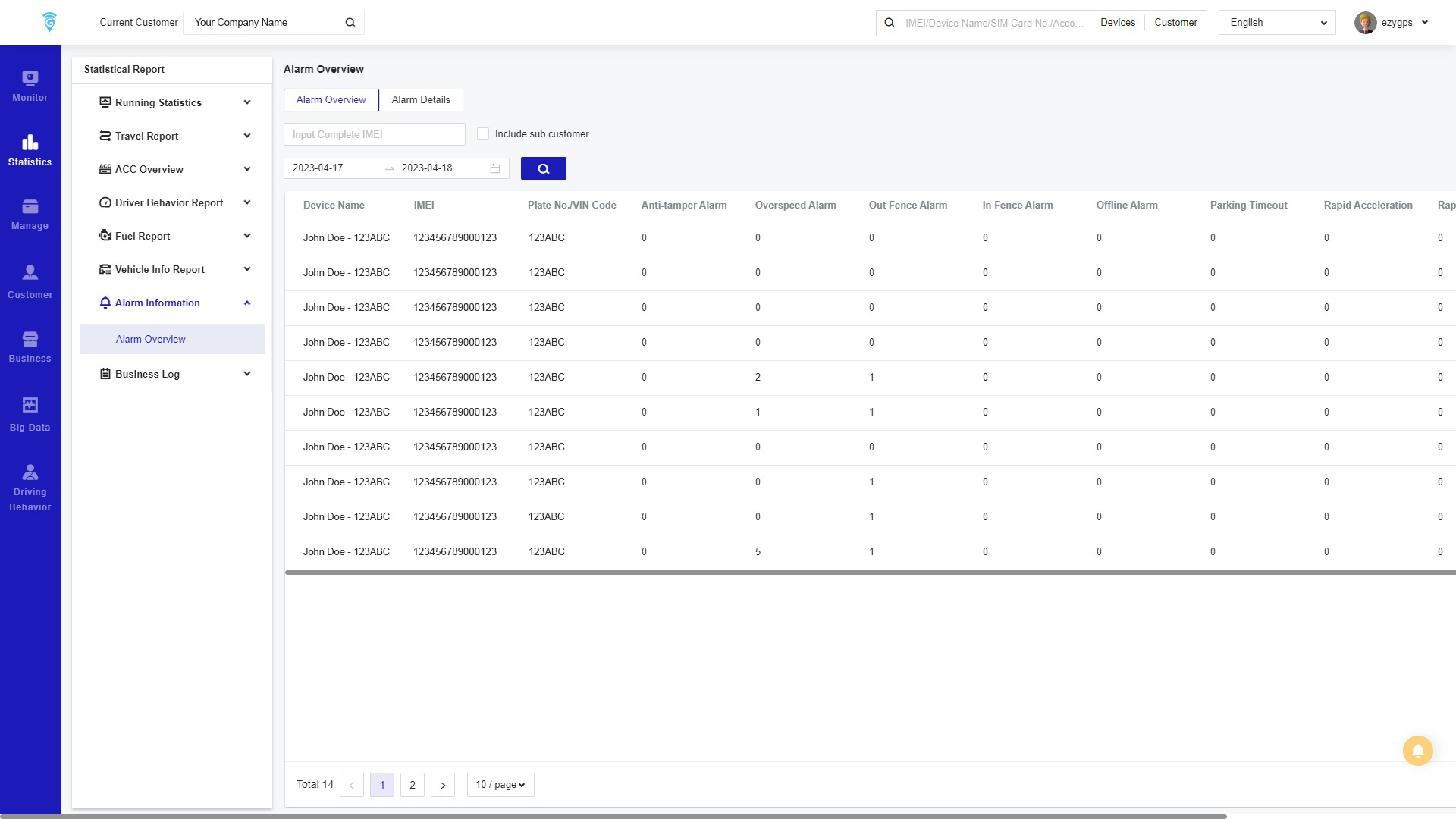
Click on the Alarm Information as shown in the image below. Then enter the Alarm Overview page to view the Alarm Overview and Alarm Details.
Steps:
- Select the Alarm Overview and enter the complete device number in the Input Complete IMEI search bar. Check whether to include sub-accounts, and then click Search button to display the number of different alarm messages of the device.
- Click the Alarm Details to display the corresponding page. In the Alarm Details, the search criteria can select a single alarm type or all types. You can also change the Results type as well.
- Click the export button to export the current report.
Business Log
Click Business Log to enter either Commands Log or Operation Log. Viewing the Commands Log it will show the history of the commands sent to and from device. The Operation Log shows all operations that have happened in the software.
Steps:
- Select the Commands Log and Operation Log and enter the complete device number in the Input Complete IMEI search bar. Check whether to include sub-accounts, and then click Search button to display the number of different alarm messages of the device.
- When clicking on Operation Log the search criteria can select the Operation Account and the Operation Object. There are also different types of operations that you can select to customise your search.
- Click the export button to download the current report which is on the top right of the page.