After successfully logging in to the system, enter the home page of the platform, and you can view the following functional areas on the left: account information (enterprise LOGO, avatar, account name), monitor, statisticals, management, My customers, Big Data, Driving Behaviour, Device Maintenance, System Settings, Exit;

Top bar
Current Customer: Displays the name of the customer’s account.
Device Search Bar: This search bar supports searching for IMEI/Device Number, Device Name, SIM Card Number, Account Name for a quick search. Click on the “Devices” button on the right to display the search result as vehicle device details or click on the “Customer” button to display the device attribution account.
Language Switch Button: The platform supports switching language on the home page to facilitate the daily use and needs of the customers. This language selection button can be synchronised with the language selection button on the login page.

Device list
The customers will be able to view all the devices on their account on the device list.
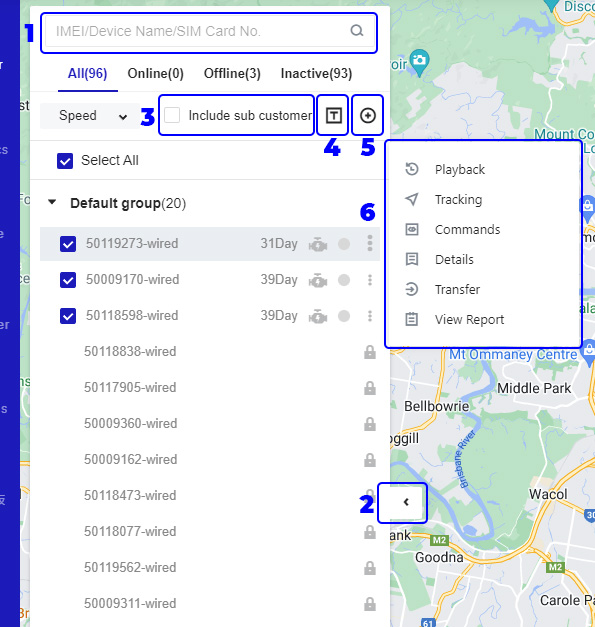
- Device Search Bar: Enter either the IMEI, Device Number, Device Name, or Sim Card Number in the search bar and click the vehicle that appears below to view the location and details of the device.
- Hide Device List Button: Click the button to hide the device list which displays the vehicle location information on the map.
- Include Sub Account: Click to check the Include Sub Account box to display the devices of the sub-account in the device list.
- Display Device Name: Click to display the device name above the vehicle icon on the map.
- New group: Click to create a new group in the device list, allowing customers to group devices of the same type into groups.
- Device Functional Areas: Playback, Tracking, Commands, Details, Move to, View Reports. For more information view Device Monitoring Page.
Map
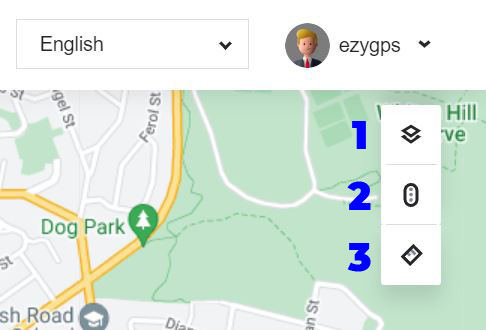
The map control area shows map switching, live traffic, and map ranging. This is located on the top right side of the map on the Monitor Page.
- Map Switching: The platform supports Google Maps, Google Satellite Maps, and OSM Maps.
- Real-Time Traffic: The map can display traffic and road information in real time.
- Map Distance Measurement: Click the distance measurement ruler to calculate the distance between two points on the map.
Alarm bell
The alarm bell displays the pushed alarm messages in real time. Click the Alarm bell to view the alarm statistics and details. This report can accurately find alarm information according to the selected time period and alarm type.
The alarm bell will make a sound every time it receives a notification unless you turn the notification sound.
The alarm bell is found on the bottom right side of the page on every page.