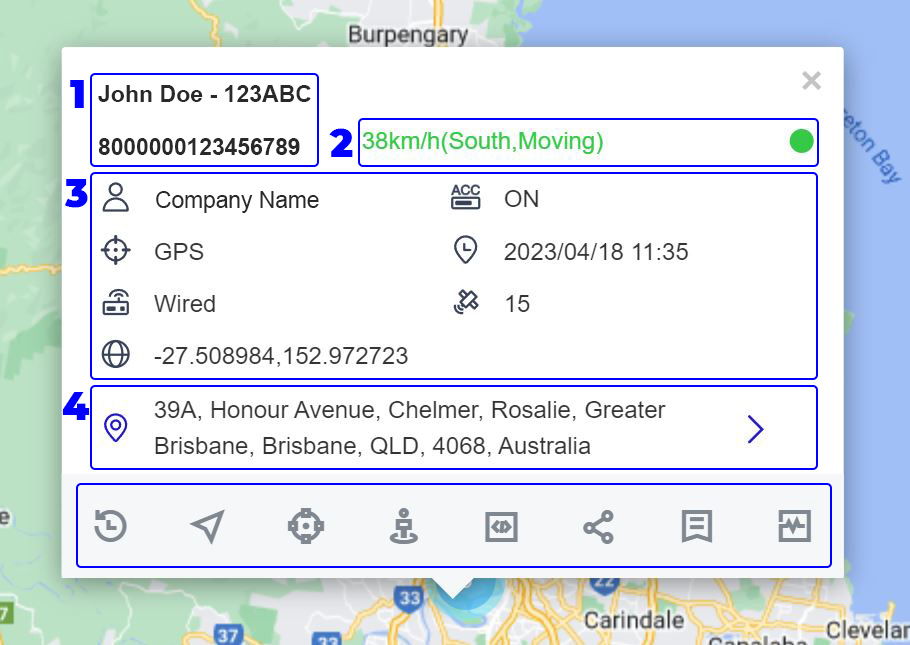
The Device Monitoring Page identifies the individual vehicle tracking information.
- Device Name: Displays the vehicle’s customised name and the devices identification number.
- Colour Status: When the vehicle on the map or the speed and compass information is:
- Blue indicates online.
- Green indicates driving.
- Yellow indicates dormant.
- Gray indicates offline.
- Device information: Displays Vehicle owner, Position By, Type of Device, Latitude and Longitude, ACC Status, Positioning Time, and Satellites Connection. This monitoring information can be customised in the system settings.
- Location Address: This information displays the latest location address uploaded by the device.
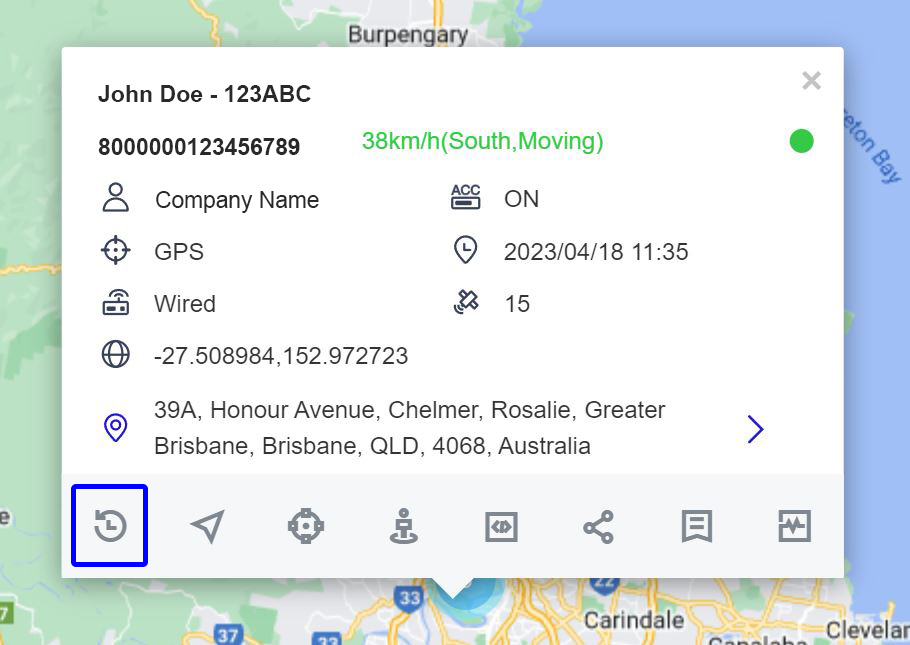
Track Playback
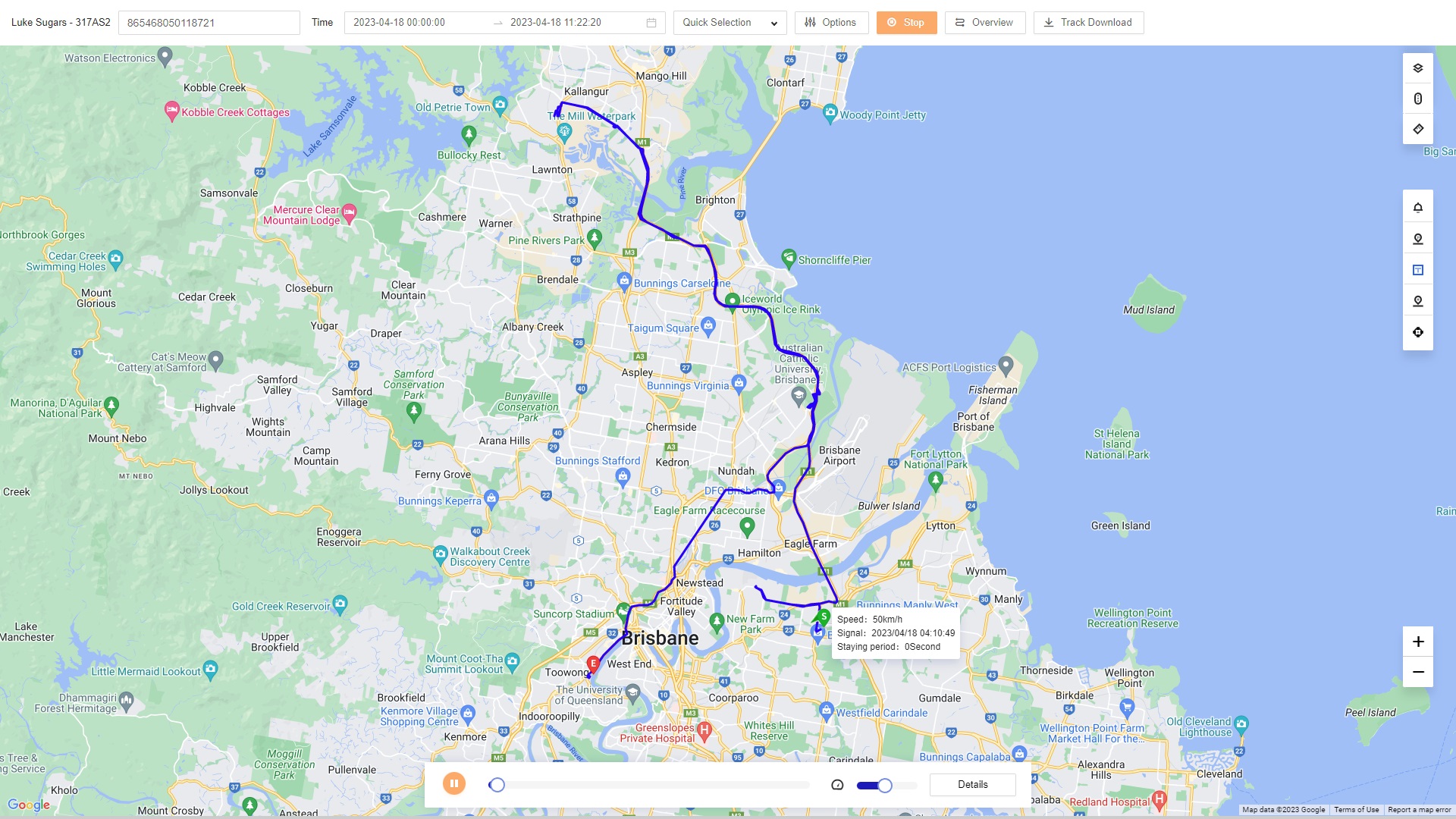
Click on Playback to proceed to the History Play Back page, enter the IMEI number, and then select the time period to view, or select Today, Yesterday, 1 day, 7 days or 10 days in the shortcut “Quick Selection” drop-down menu, then click on the “Start” to view where the vehicle has been.
To the right of the “Quick Selection” drop-down menu, there is a setting modification on the tracking course being viewed to make the results customised.
The “Overview” button shows the routes taken by the selected vehicle. It also displays a general overview of the Total Time, Mileage, Moving Duration, and Total Staying Duration.
Click “Track Download” to download the track selected.
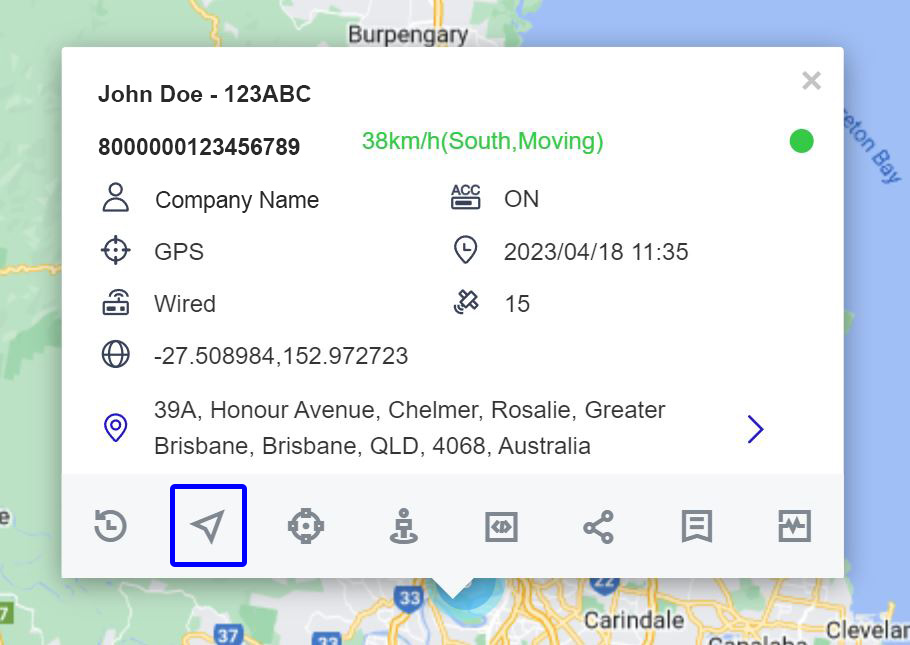
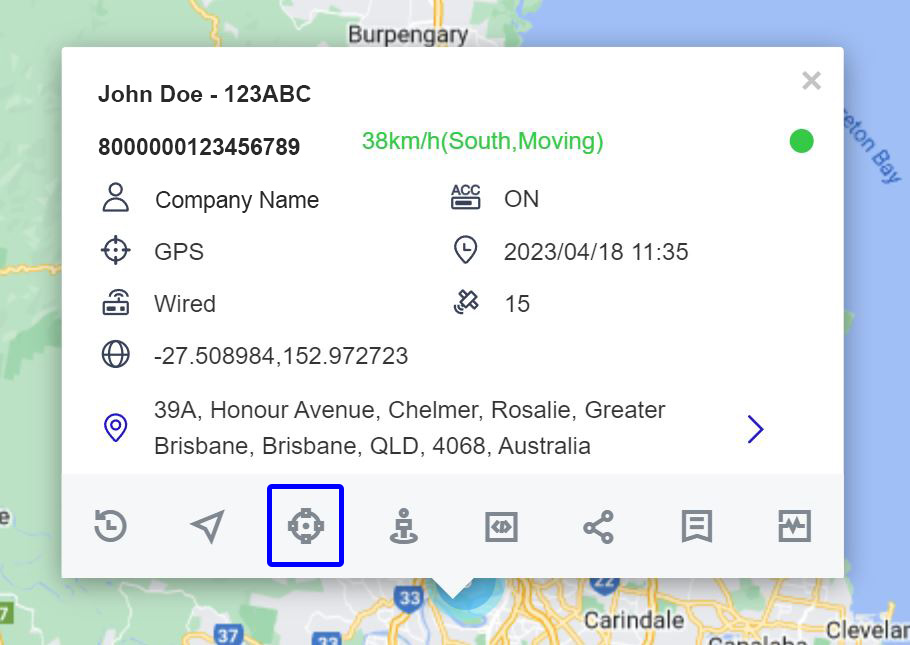
Location Tracking
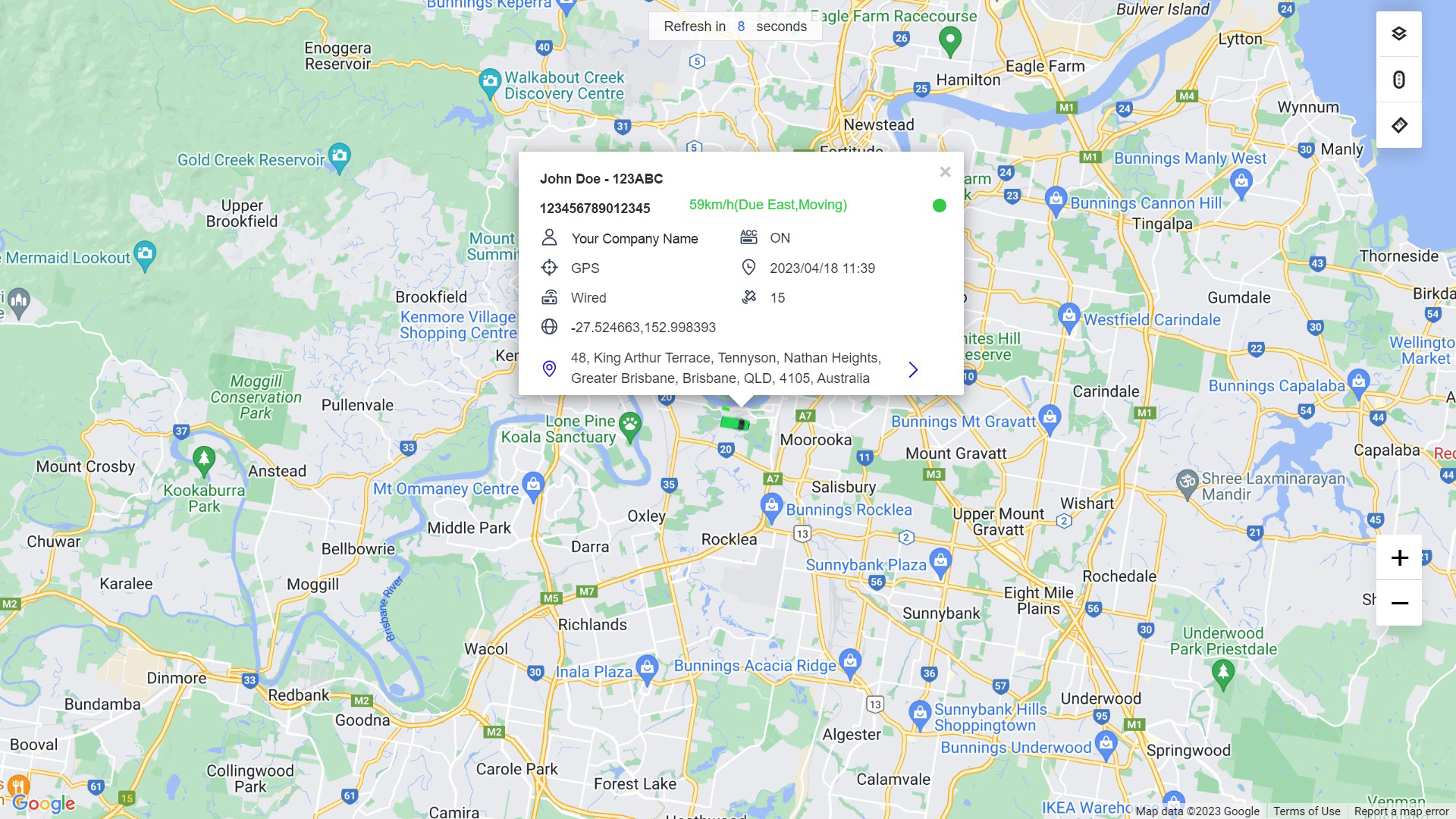
To access the Location tracking, click “Tracking” to display the device's real-time location. The location map is refreshed every 10 seconds.
Geo-Fence
Geofencing is used to set up a virtual geographic boundary and trigger where the device can go. If the device goes beyond the set boundary, the device will send an alarm to the software.
Click on the “Geofence” button to create a circular fence, circular customised fence, or a polygon fence and by doing this, the existing fences of the device will come into view.


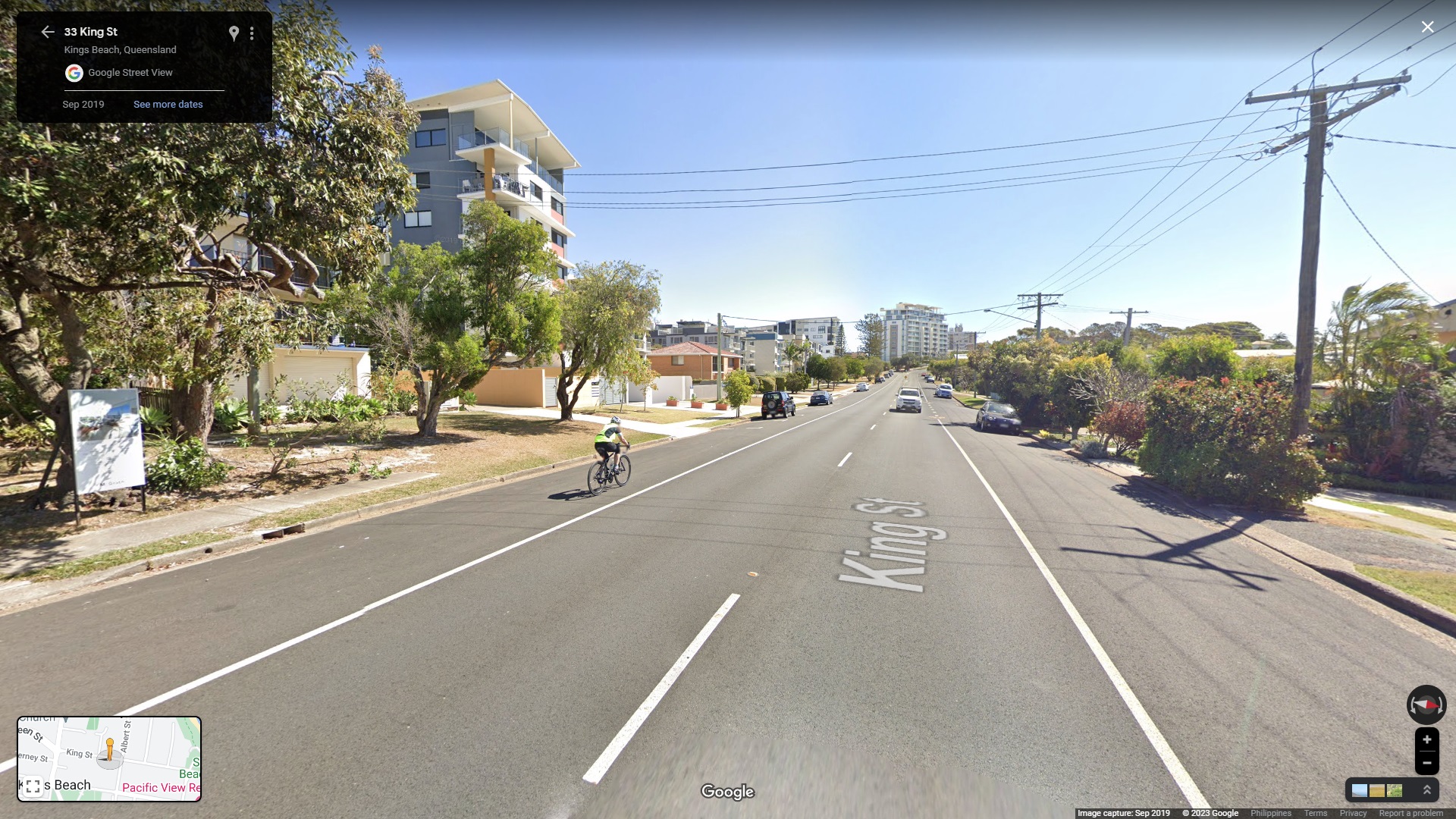
Street View
By clicking “Street View”, the software will go to the street view mode on Google Maps of the device’s current location.
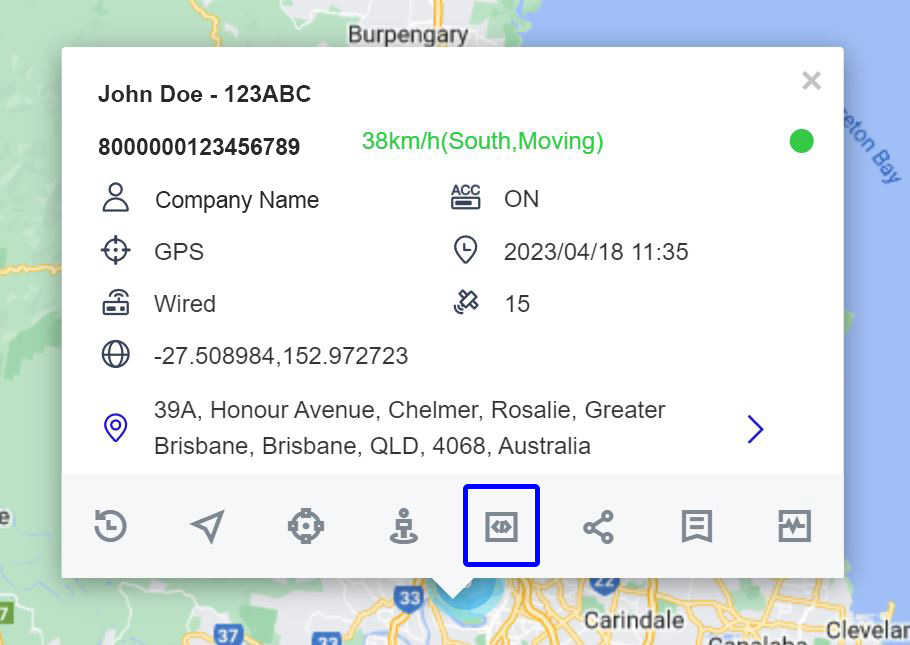
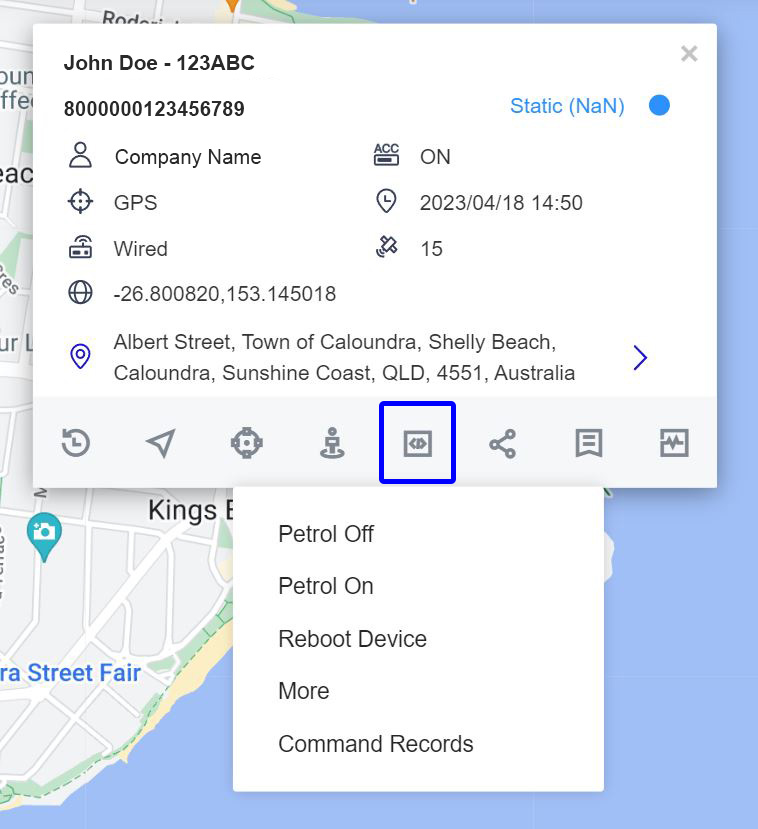
Commands
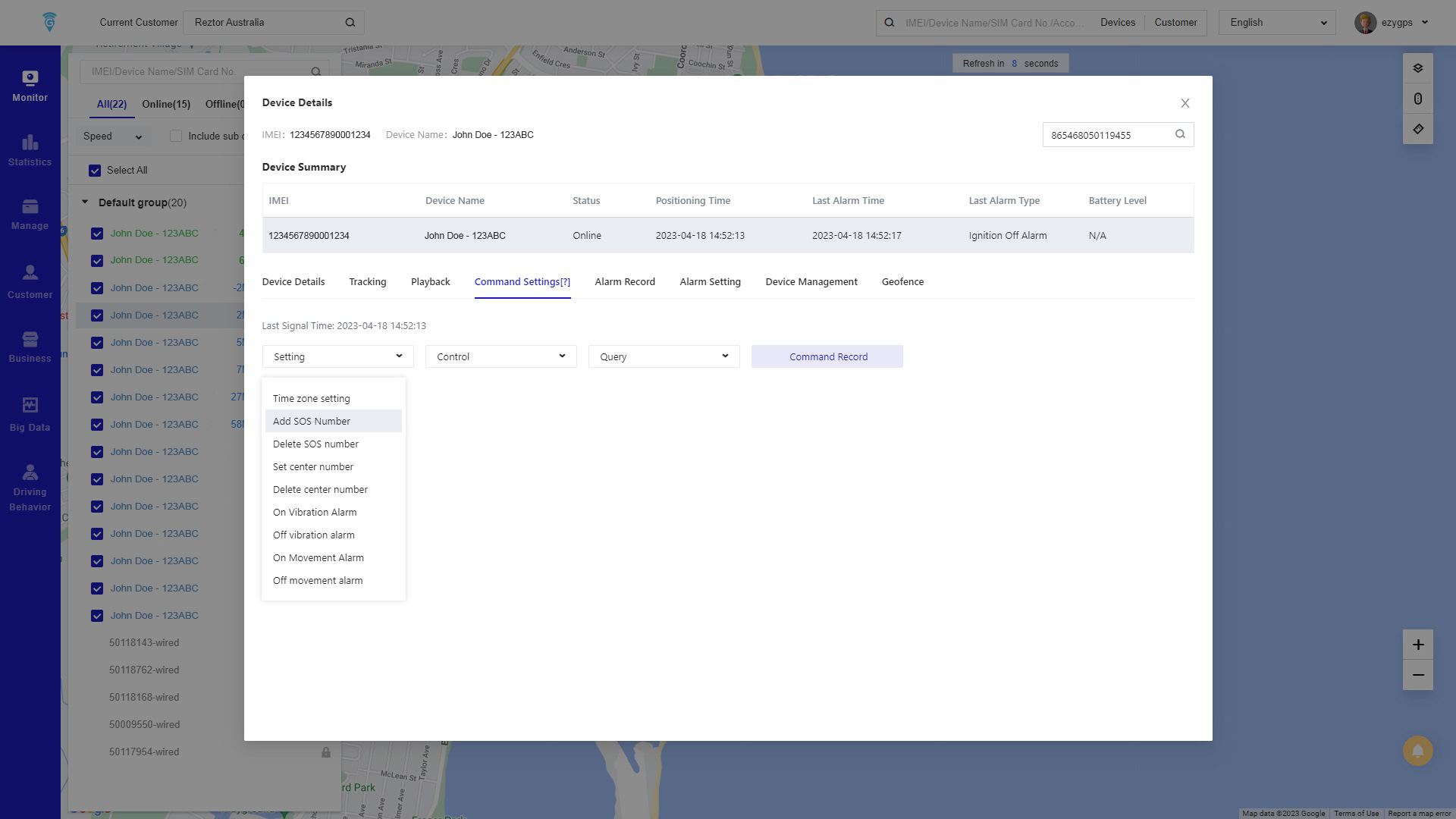
When clicking on the “Command” button it will give options to issue Commands remotely; some options are Petrol Off/On, Reboot Device, More and Command Records.
Warning- View our Terms and Conditions regarding the Engine Off/On Command.
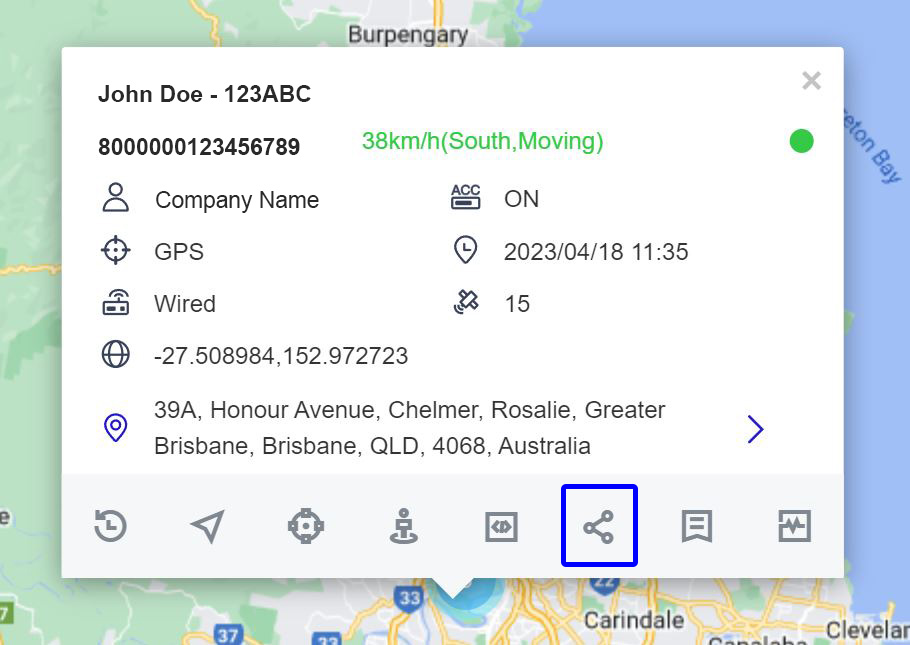
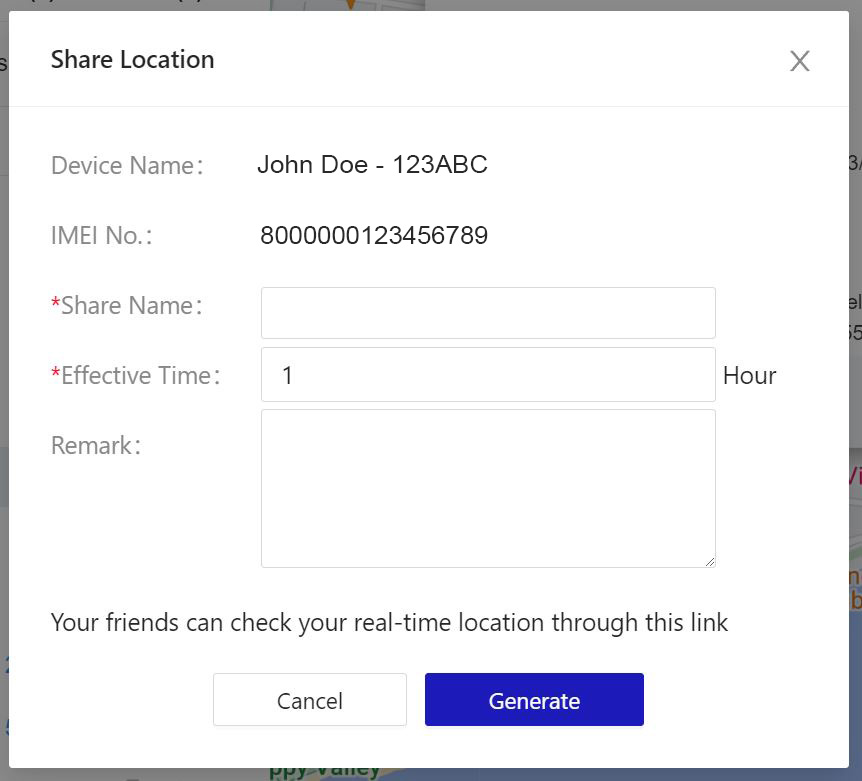
Share the current device location link with others. The share location can only be effective for a limited time.
Click on share and fill out the few details required, and a link will be generated.
Details of Vehicle
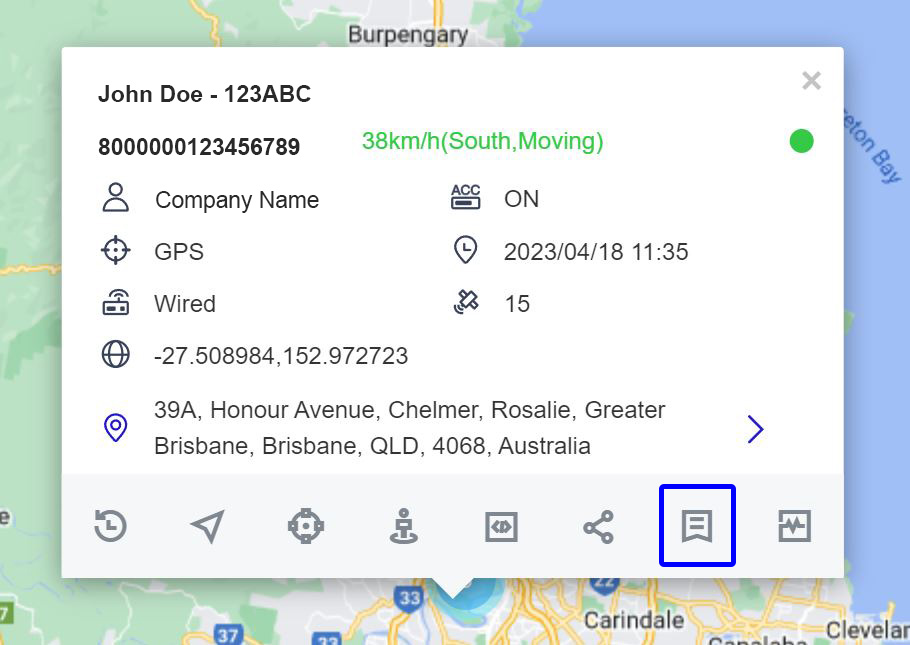
Click on “Details”, which goes to a device summary of all the information for the selected vehicle.
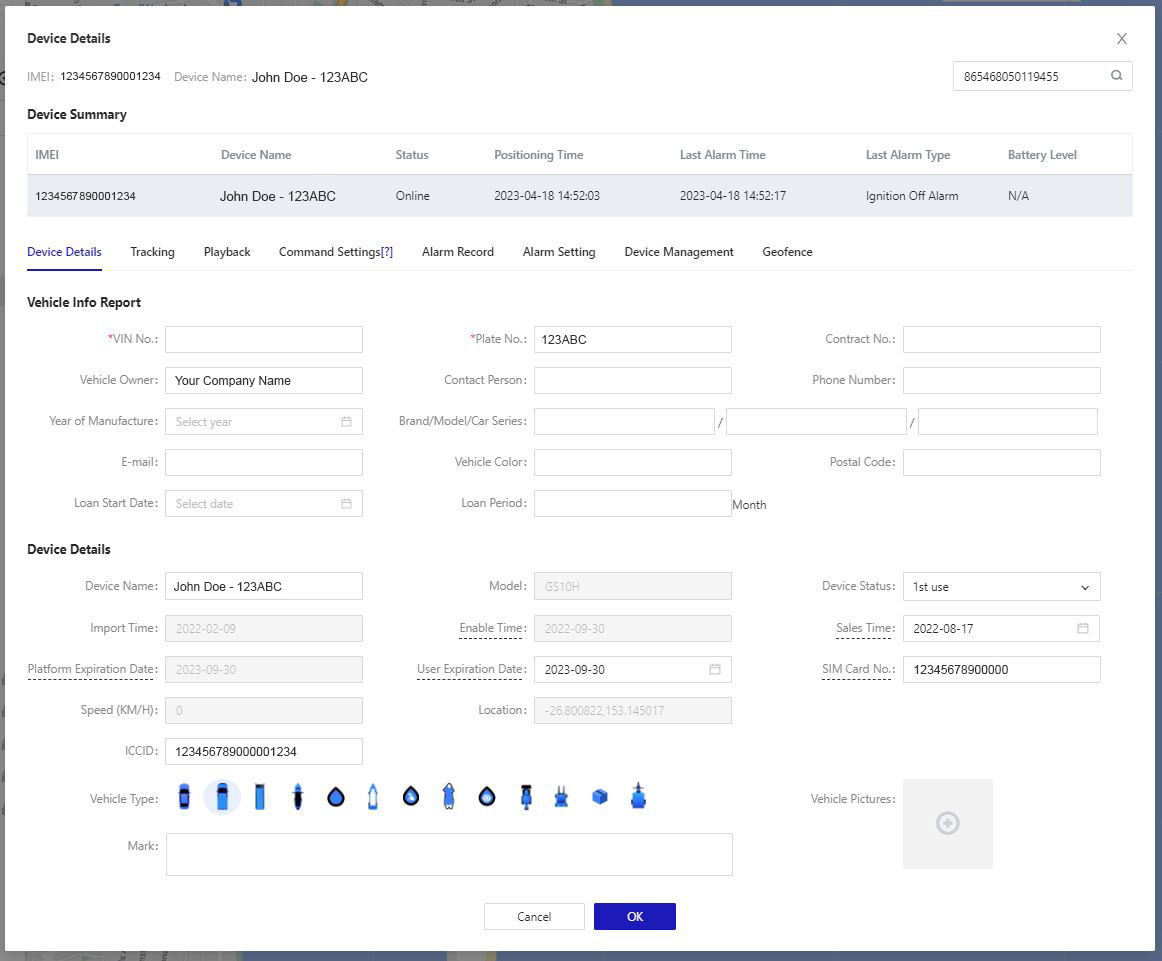
This is where to find everything about an individual vehicle/device.
- Vehicle/Device Details: View the Device number, Device Name, Device Status, Positioning Time, Last Alarm Time and Type, Battery Lower and other information about the vehicle..
- Device details: View the detailed information of the vehicle bound to the device, the device model, activation time and expiration time, SIM card number, etc., and also view the vehicle frame number, license plate, and support modification.
- Location tracking: Click “Tracking” to display the real-time location of the device, and the location map is refreshed every 10 seconds.
- Display Device Name: Click to display the device name above the vehicle icon on the map.
- Track playback: Click on playback to jump to the track playback page. See notes above under Device Monitoring Page for more information.
- Command Settings: To issue Commands to the device or view the issued Commands records. The specific Commands depend on the device and are divided into Setting Commands, Control Commands, and Query Commands, and Command Records
- Alarm Record: This page displays the alarm information generated by the Device in the vehicle. View the Alarm Time, Alarm Type, Location Time, Vehicle Speed at the time of the alarm, and the Address at the time of the Alarm.
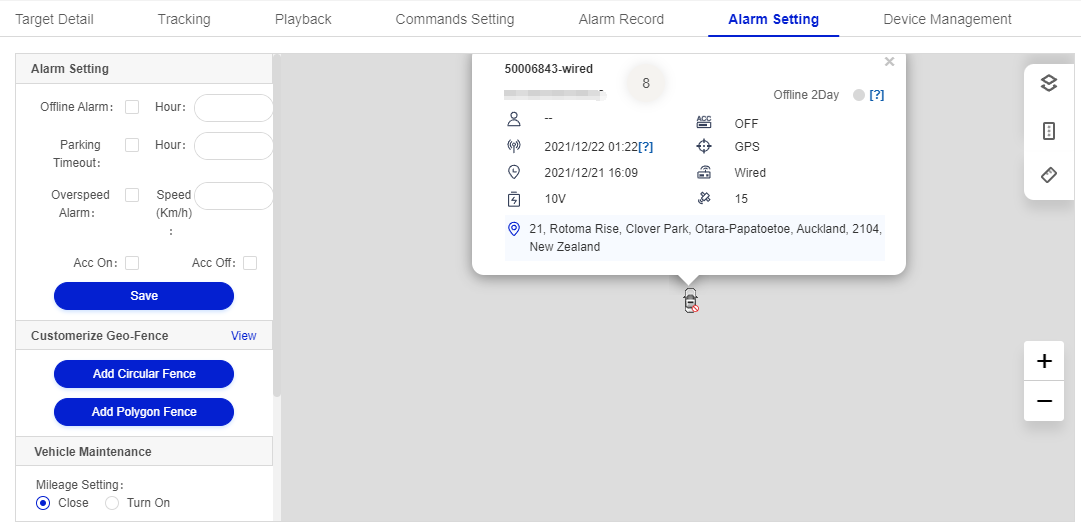
- Alarm Settings: customised the alarm rules and add alarm Geofences. The alarms the can be set are ACC Alarm, Offline Alarm, Parking Overtime and Overspeed Alarm, and Mileage Maintenance Alarm.
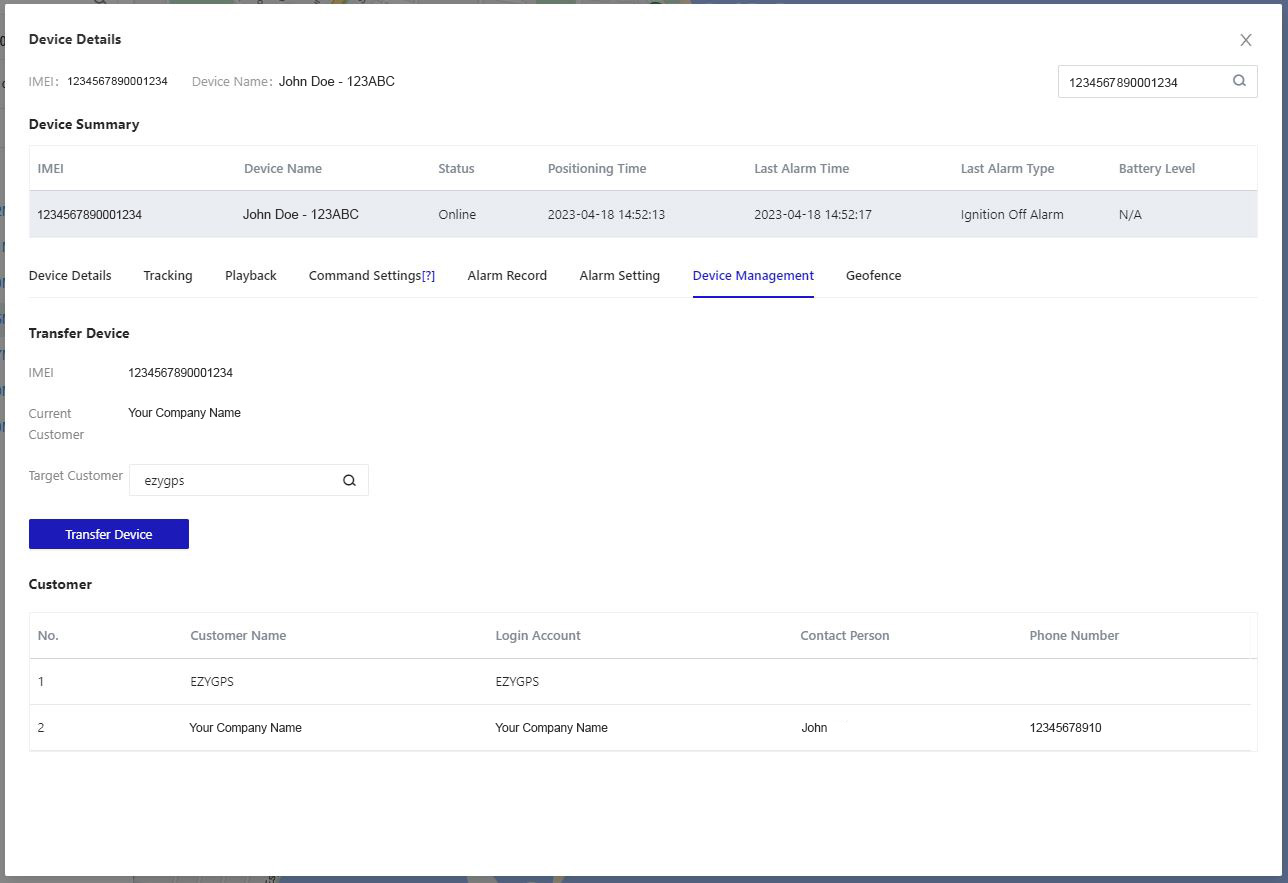
- Device Management: Display the customer and owner accounts information so the customer can contact the owner. It is also where the owner can transfer devices to the client.