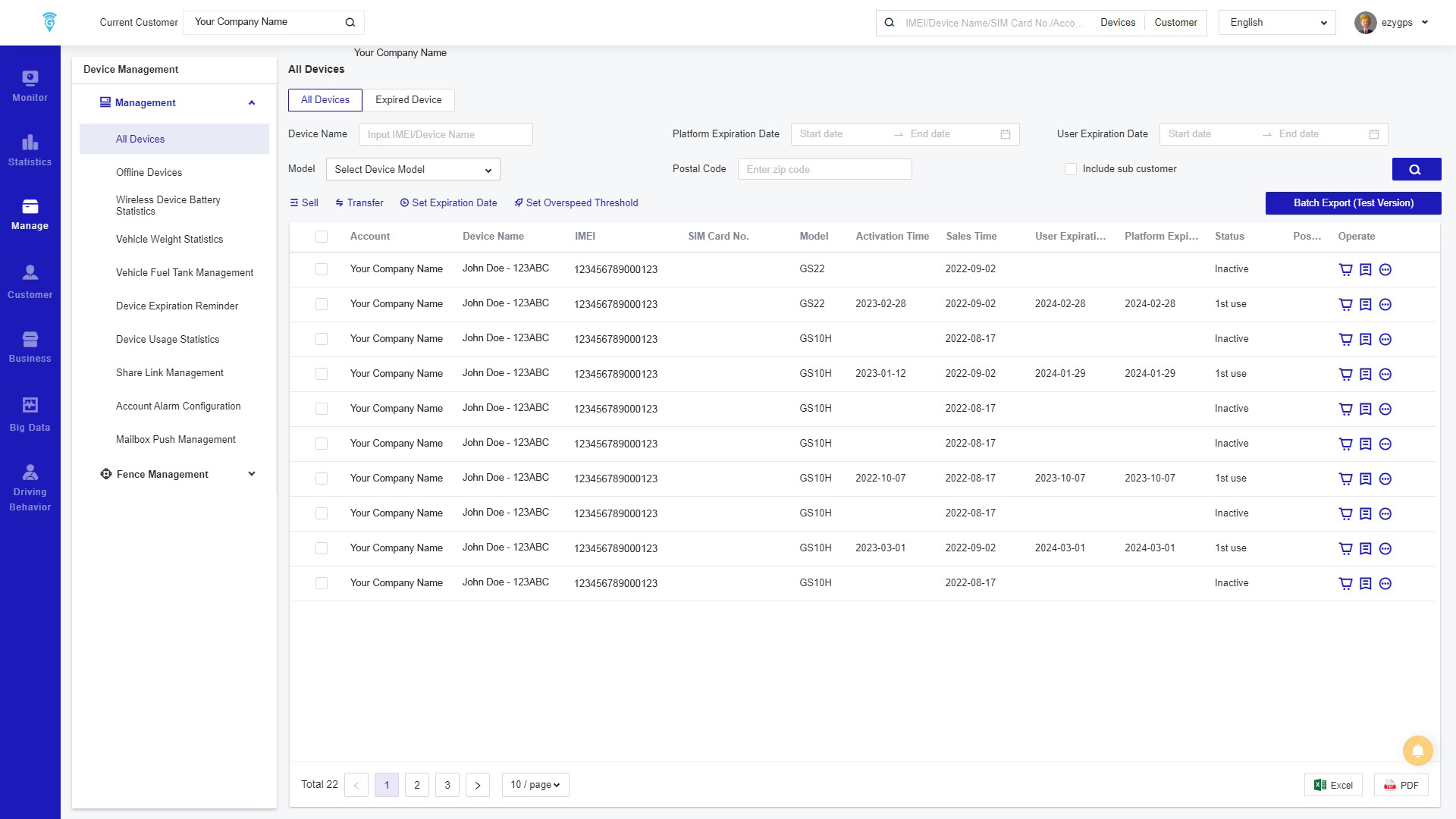
All Devices
All Devices is located in the Management page. This page displays the management information of all devices, as shown below.
Steps:
- In the "All Devices" column, enter the device number/device name in the device name search bar, then to customised to search select the Platform Expiration Date and User Expiration Date.
- You can also check whether to include sub-customers, Model and Postal Code. Then click Search to display the corresponding device information list.
- Click the export button to export the current report.3. On the far right, there are export and batch export buttons.
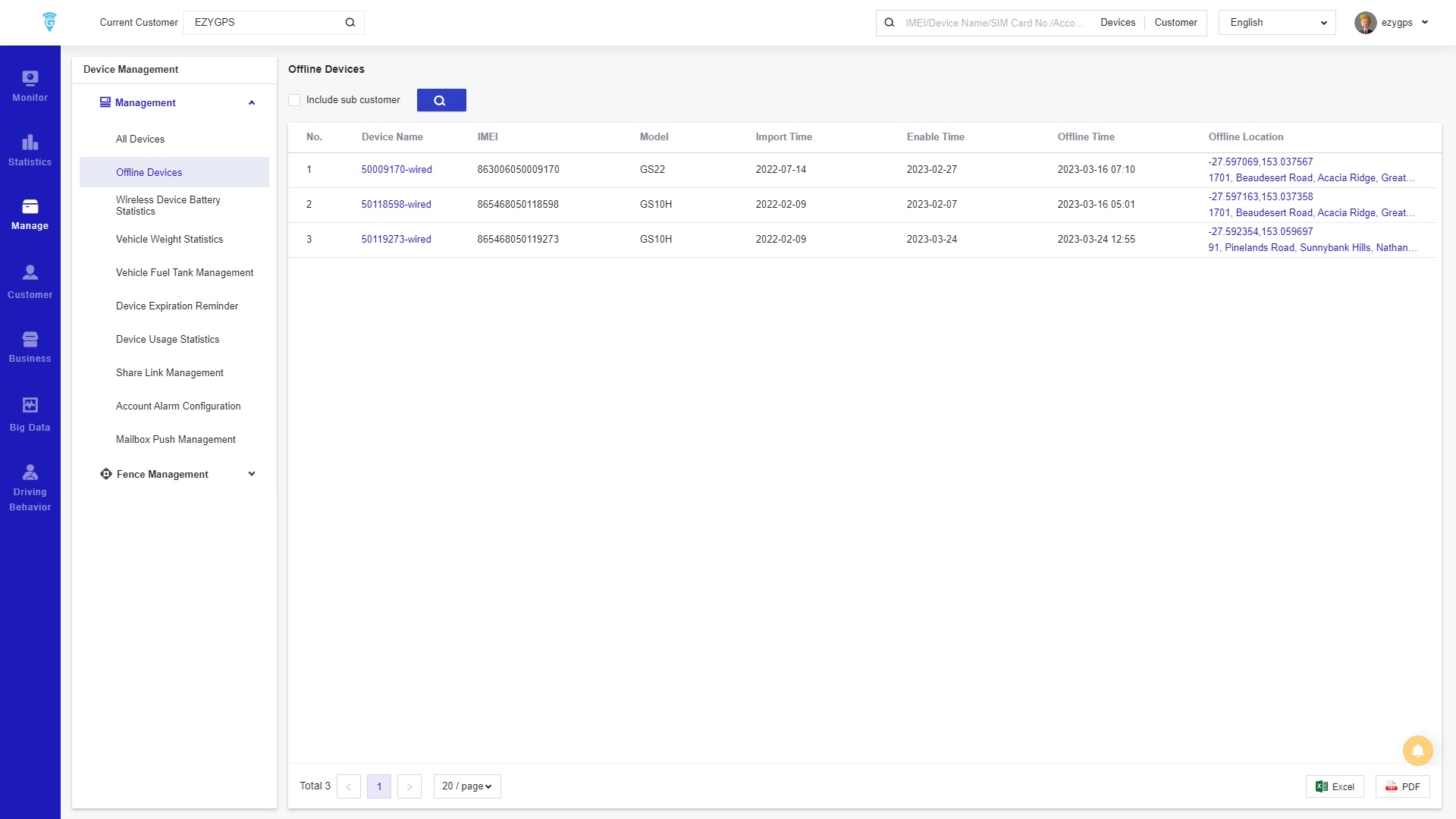
Offline Devices
On Offline Device contains information about the when a device has been enabled and then taken offline.
The page displays the activation time, offline time and offline address which is helpful to keep track of how old the device is and assists EZY GPS when trouble shooting.
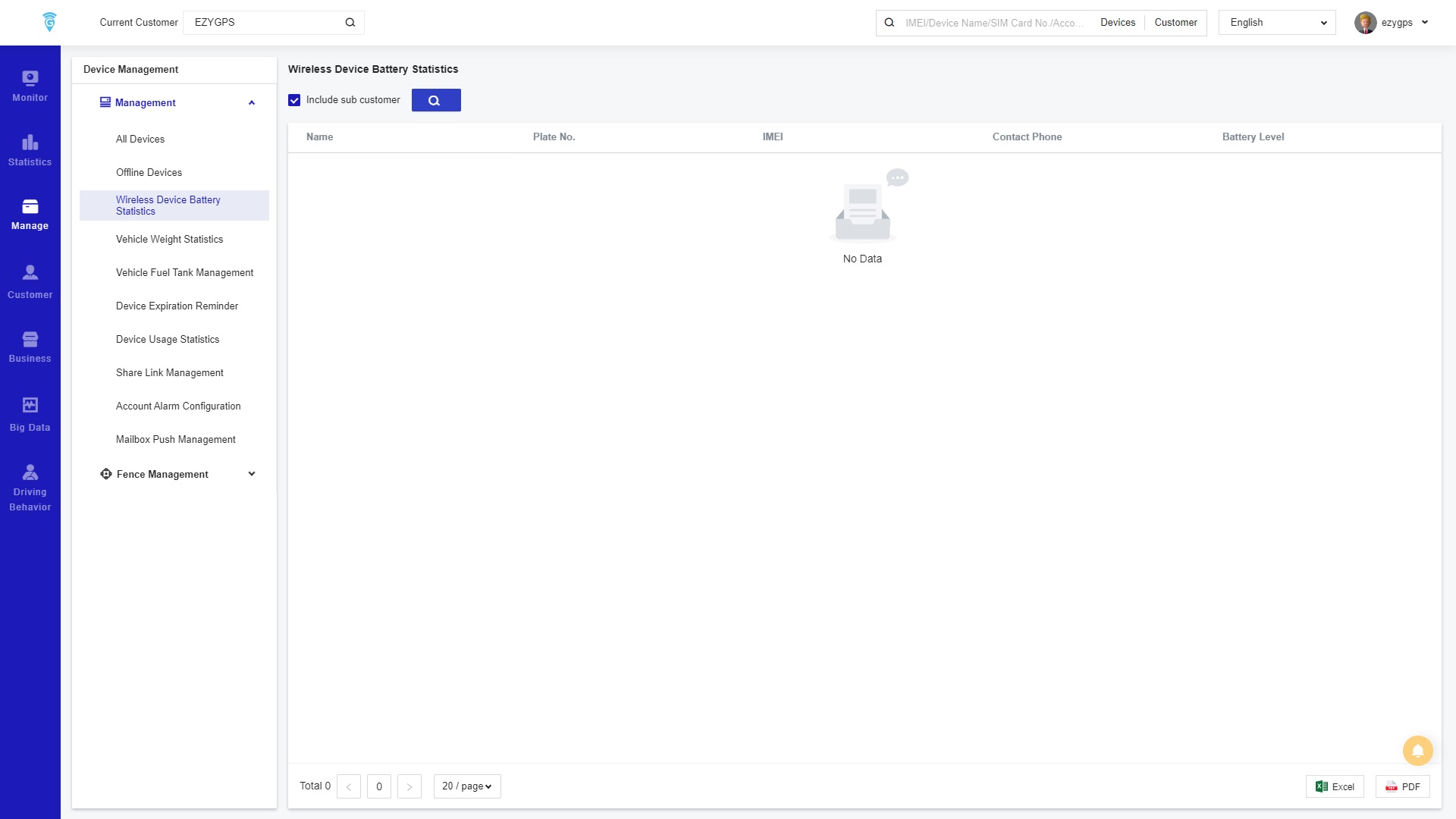
Wireless Device Management Statistics
The Wireless Device Battery Statistics page of management is to display the remaining battery power of EZY GPS’s GS22 wireless tracking devices that connect to the ODBII port.
You can view the name and device number of the wireless device in detail, and the contact person who manages the device to inform them of the battery’s power state.
Vehicle Weight Statistics
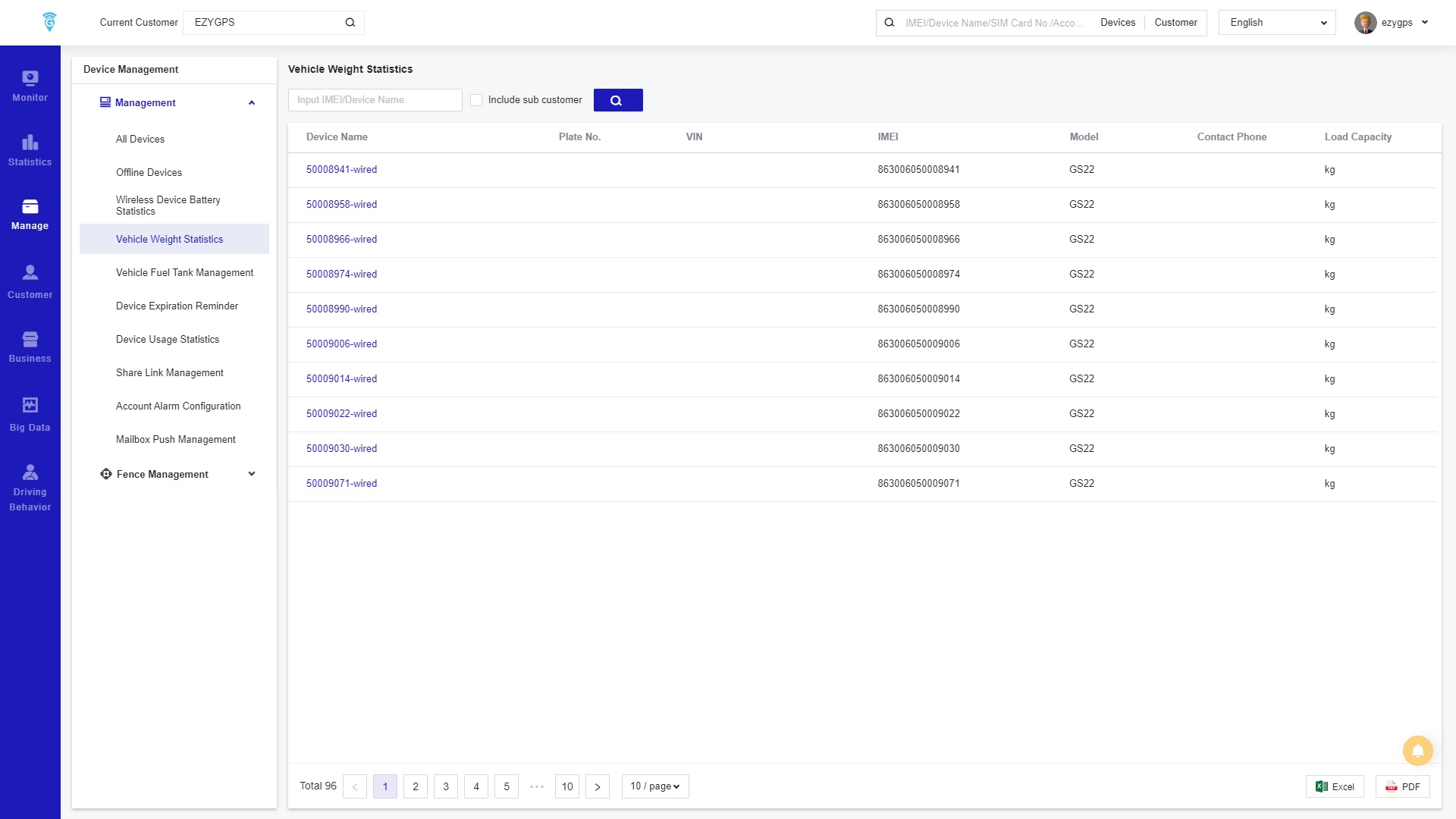
The platform page Vehicle Weight Statistics calculates the load capacity of the vehicle through the load sensor bound to the device. View the load capacity of all vehicles on the account or just an individual one by entering in the device name or number in the search bar.
Vehicle Fuel Tank Management
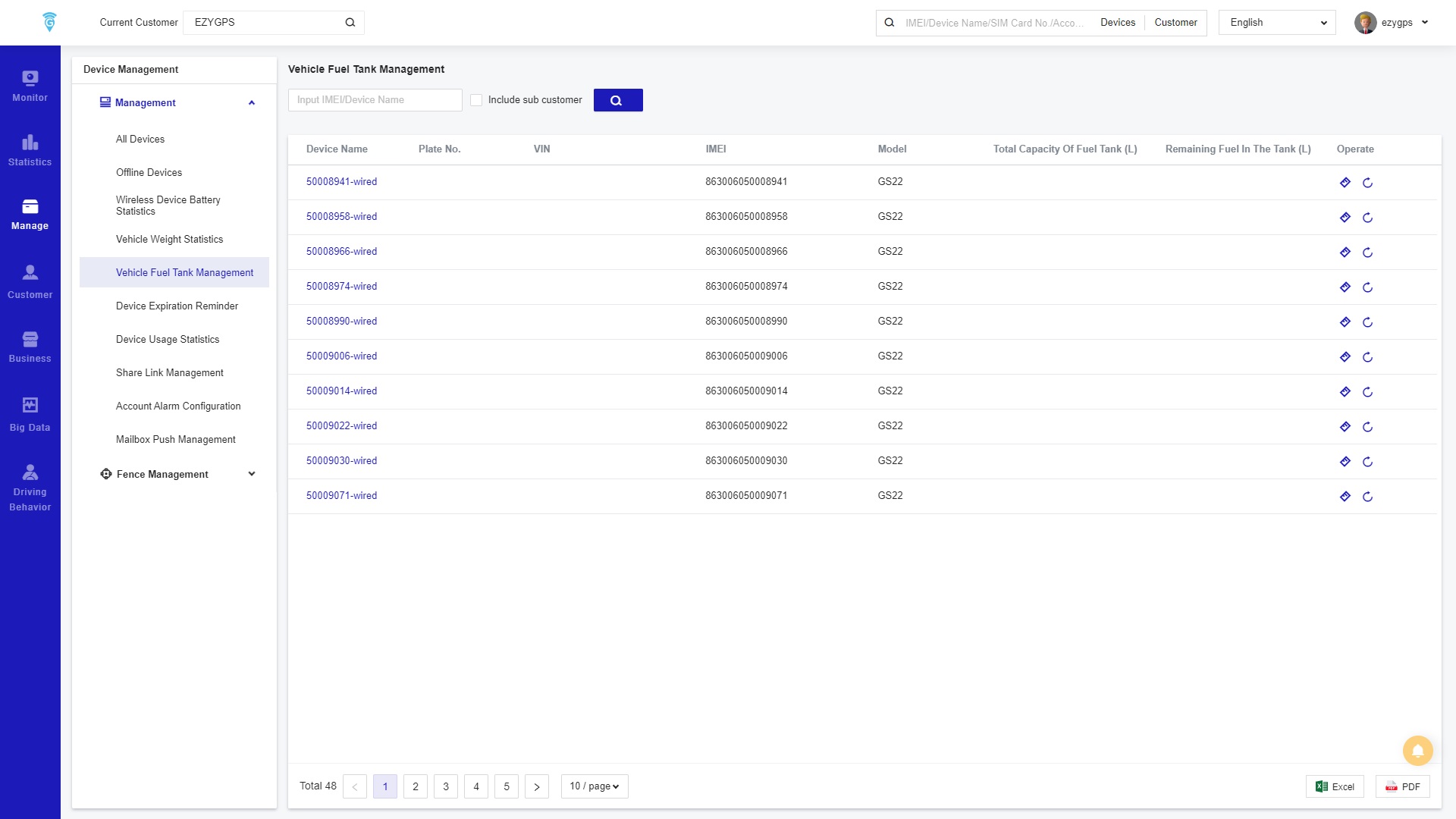
The Vehicle Fuel Tank Management , is where to locate the total fuel tank capacity and the remaining fuel.
You can search for a particular device by entering the device number or name in the search bar.
To manually calibration or re-calibration the capacity of the fuel tank, find it on the top right side of this page or see below in image marked. You will have to enter the Fuel Tank Capacity(L) and the Fuel Tank Height(cm).
At the same time, you can view the Device Name and Number, and other vehicle information.
Device Expiration Reminder
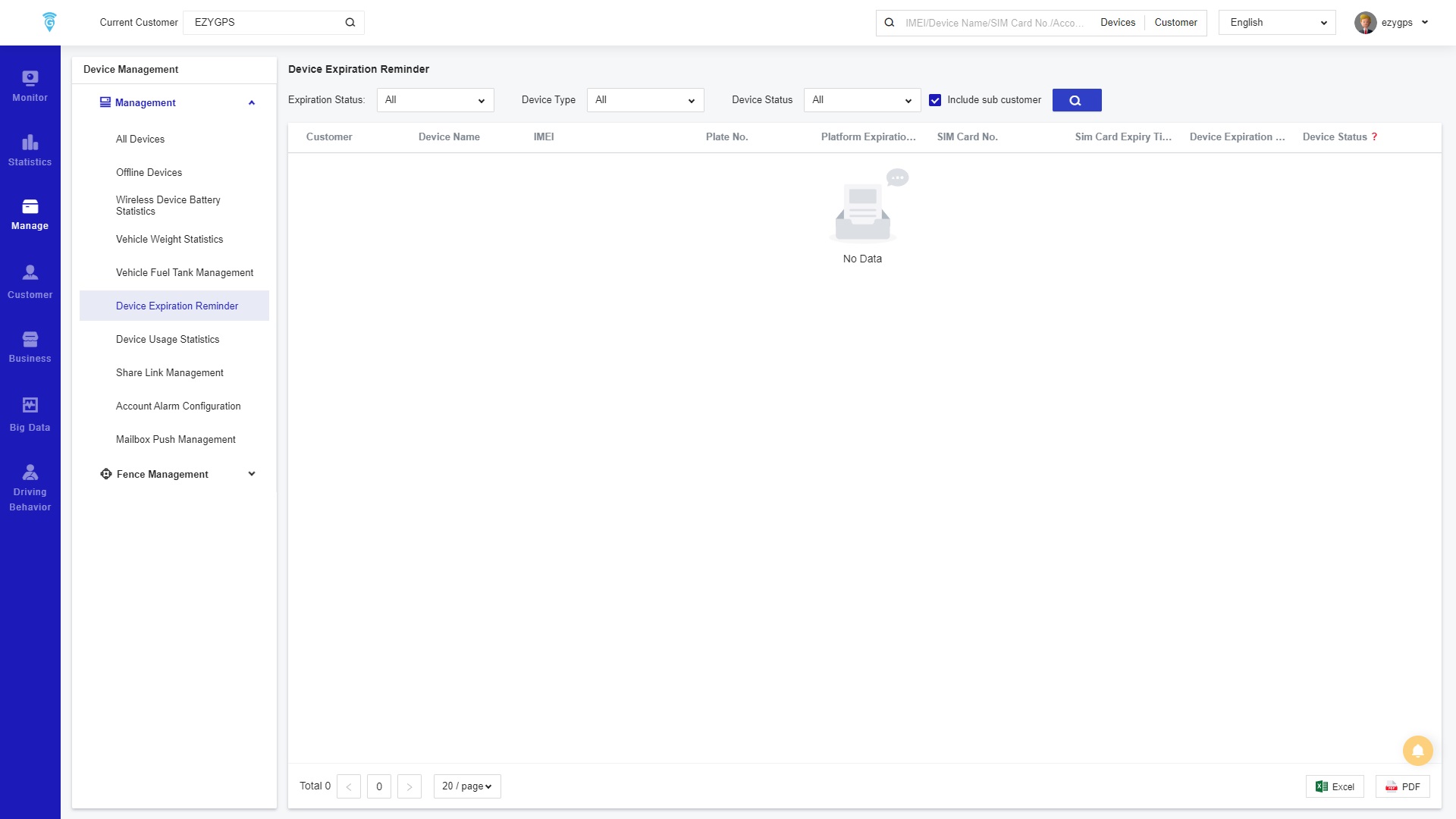
The Device Expiration Reminder contains the expired devices and SIM card, and Platform expiration time in the account.
To refine the search, select a particular expiration status, device type and device status.
Make sure to press the search button or you will not get results.
Device Usage Statistics
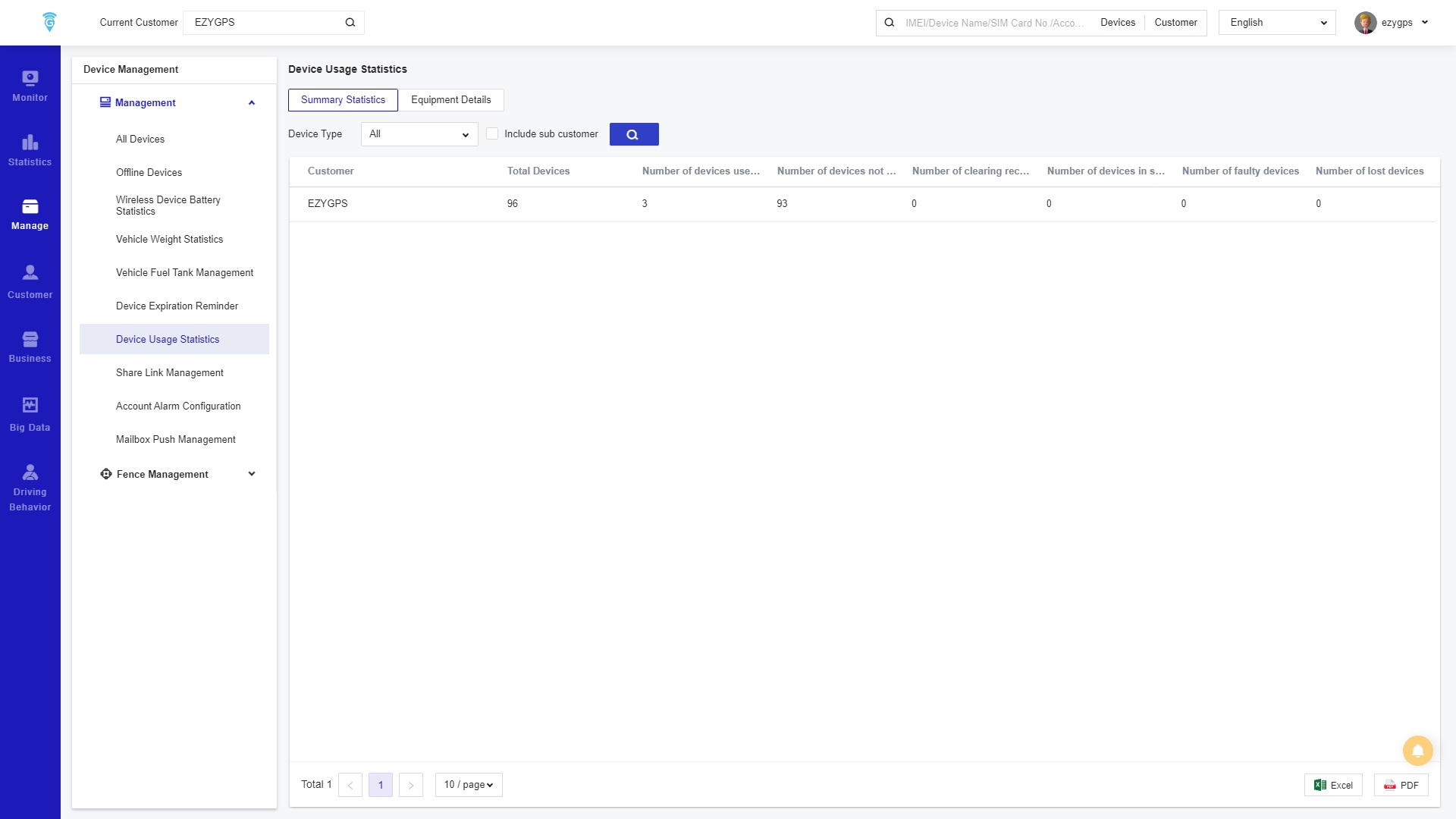
On the Device Usage Statistics page, it displays the usage of the Device in the store.
You can view the amount of Device in the store, Number of Devices Used for the First Time, Number of Devices not Enabled, Number of Clearing Recovery Equipment, Number of Devices in Secondary Use, Number of Faulty Devices and Number of Lost Devices.
On the "Equipment Details" page it contains further information about the device usage, focused on the renewal dates for the devices in regards to the software.
To customise your search, change the device type and the device usage status to get a more accurate result.
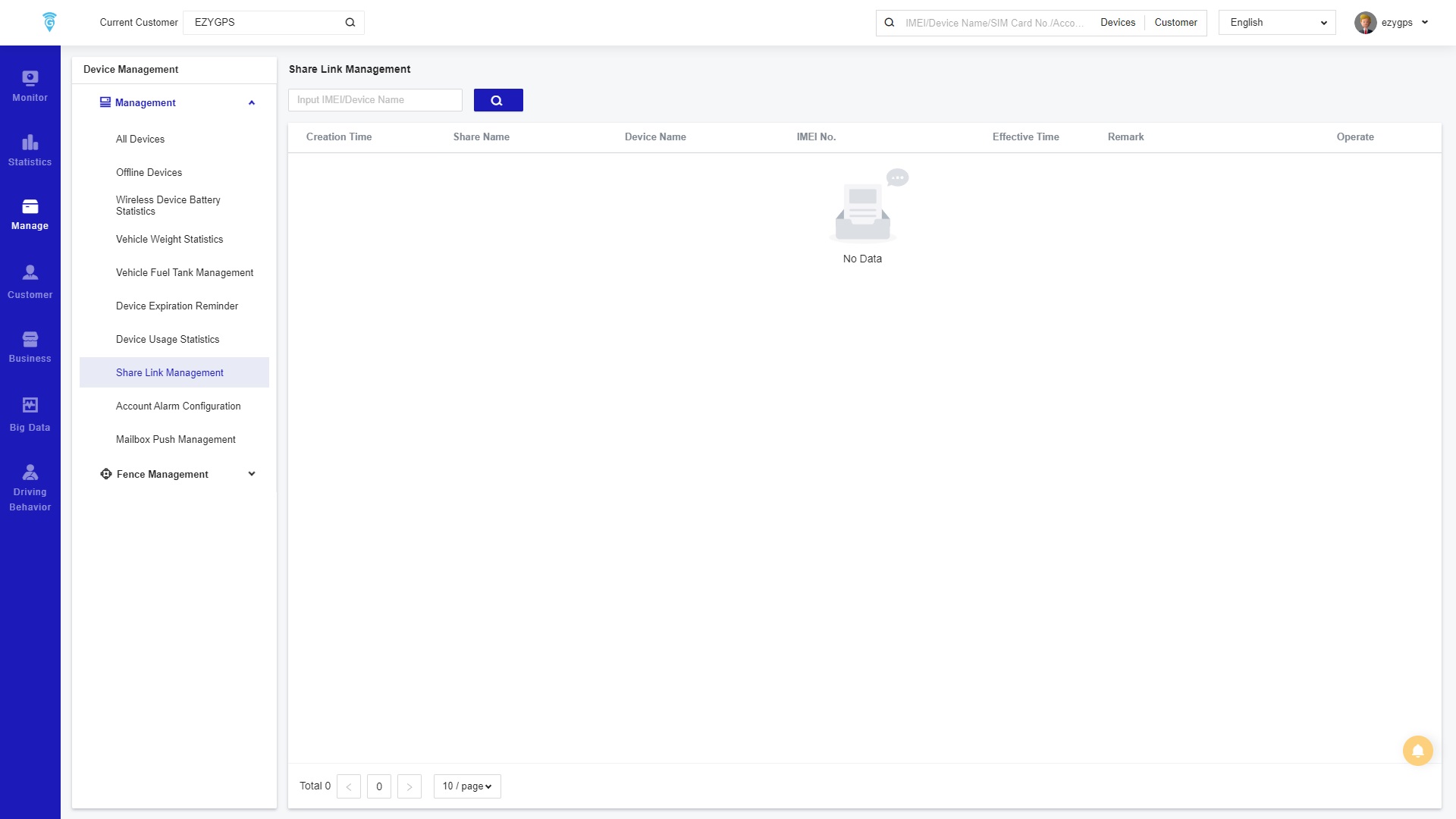
On the Sharing Link Management page one can show in detail the time when the device positioning sharing link under the store was created, and the sharing name, device name, device number and other relevant information. It keeps a record of every time information and reports have been shared from the software.
Alarm Setting
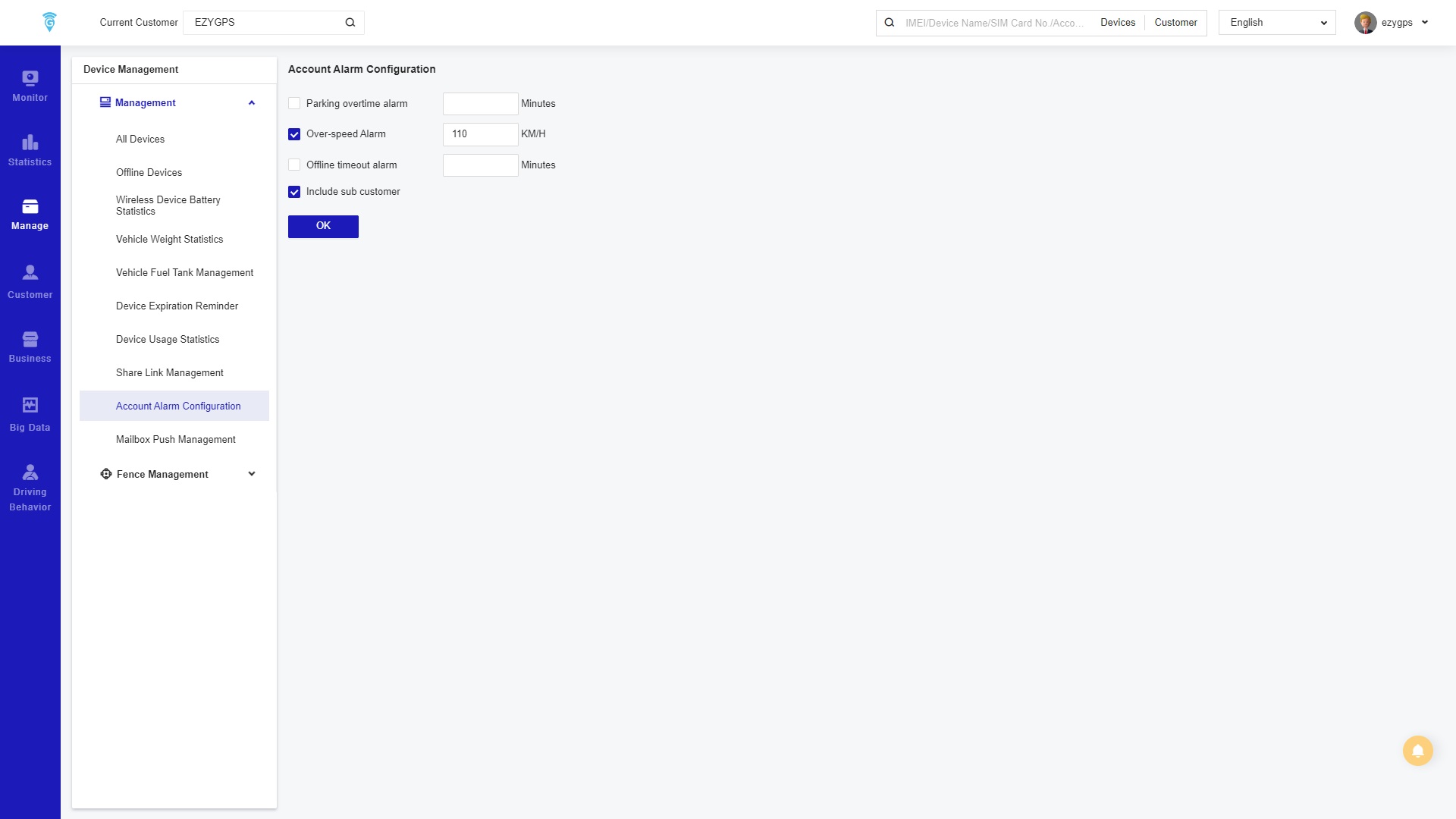
The Alarm Setting page is where alarms are set on a broad basics for every device in the account. Though the sub customer groups can be included or excluded. The three alarm that can be set are Parking overtime alarm, Over-speed alarm, and Offline timeout Alarm.
Mailbox Push Managementt
On the Mailbox Push Management page, it is designed so that one can produce and locate Management detailed reports a variety of topics about the tracking devices.
To create a push tasks, click "New Build" to open the new task pop-up window at the top of the page, under the heading.
Then select the device or devices to be pushed from the left sidebar. Continue by clicking on the right-side function bar to Select the report type, Task name, and the file type.
Then enter the start time and end time that needs to be pushed. Select the new task type, single task or timed task, single task refers to push once, and timed task refers to the report required to be pushed on a daily or weekly basis.
On the Single Task Type option, one can choose a quick time frame selection.

Fence Management
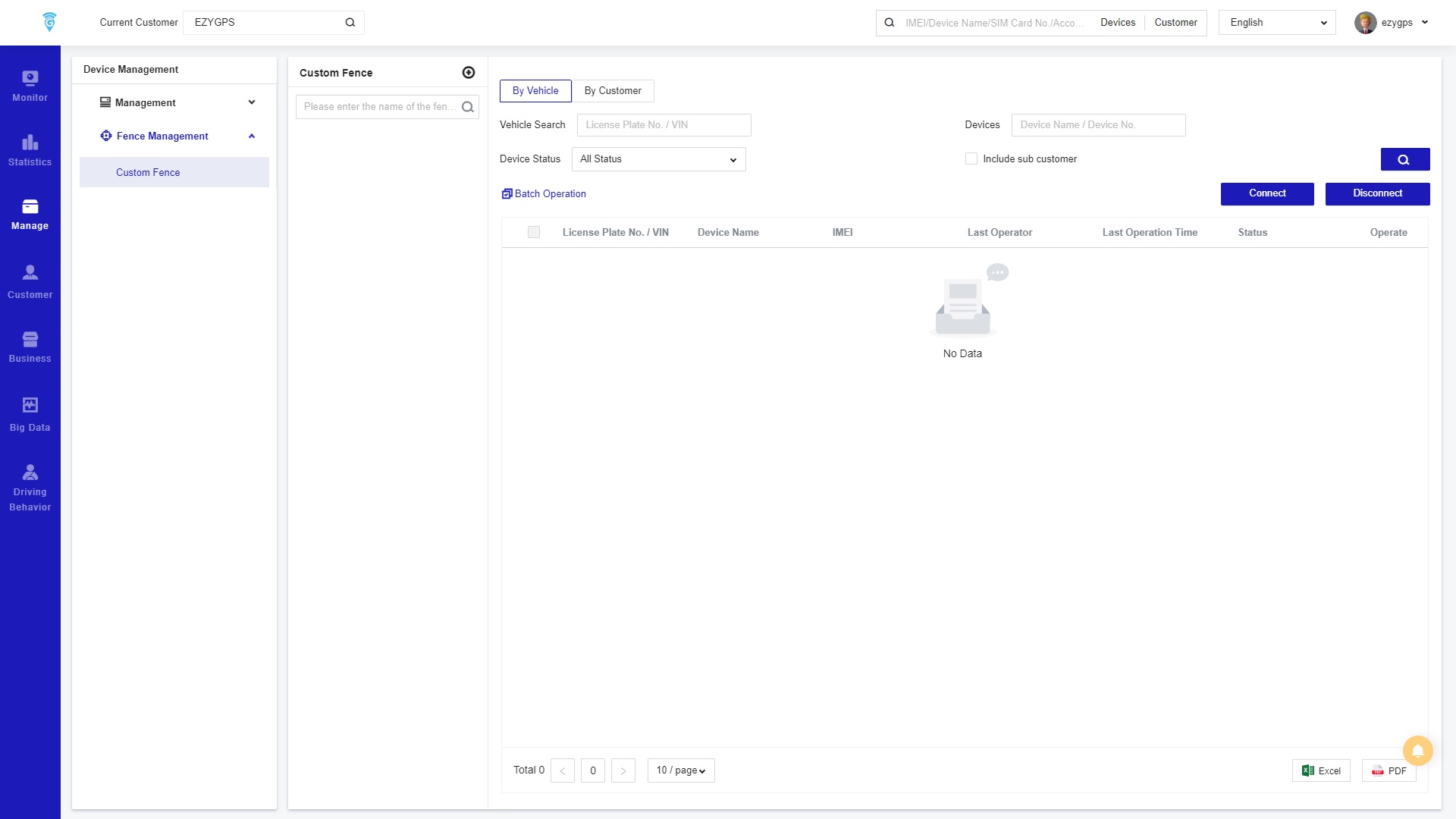
OWhen clicking Fencing Management it will take one to the Custom Fence page. This page help you to create a Geofence for vehicles and customers.
Here are the steps to take:
-
Enter the name of the fence in the Custom Fence search bar to search for particular fences. In that area one can also create a new fence by clicking on the Geofence button next to the search bar which you can see highlighted in section one of the picture. Also find picture below of the “Add Circular Geo-Fence”.
Once you have clicked on the Custom Fence list, one can either delete the fence or view the specific information of the fence.
-
Customised Fencing can be associated with stores or vehicles. When customising vehicles, enter the Plate number of the vehicle, the device number and specify the Associated Status and then click search.
There is also the option to click the blue shortcut button below to associate in batches. Click the button on the far right to export the list, associate and cancel the association.
-
The By Customer page displays information about the different Store, Last Operator, Last Operation Time, Status and Operate
One can specify the Associated Status and Include sub customers and then click search button.